 Zuki Paint
Printable Coloring Pages: How to Get the Exact Sheet Your Child Asks For (and Make It Print Well on Paper)
Team at Zuki PaintWritten with AI assistance15 min readIn summary
- Most of the "coloring pages for printing" that come up in an image search are thumbnails of 300-600 px: when printed on A4 paper, they come out with a jagged outline and a broken line.
- For a sheet to hold an entire A4, you need at least 1,000 px on each side; below that, print it smaller (two per page) instead of stretching it.
- The underlying problem is not the resolution: it is that you never find exactly what the child asked for ("an astronaut dinosaur", "a unicorn at a party") and the detail almost never matches their age.
- A sheet for a child aged 3-5 years should have 3 to 6 large shapes with very thick outlines; the same sheet for one aged 9-12 can have dozens of small areas. Printing the wrong one guarantees frustration.
- Zuki Paint, the drawing and coloring app from AIsToHire, generates the sheet you request in black outline on white at 1024×1024 px, adjusts the detail to the age of the profile, and allows you to print it blank for hand coloring or already painted on the screen.
If you have reached here, it is because you have spent twenty minutes in an image search trying to find a specific drawing to print, and what you have gotten is either a blurry image with a watermark, or something similar but not what your child asked for. This article explains what a coloring sheet must meet to work on paper, how many pixels are really needed for an A4, what level of detail corresponds to each age, and how to solve all three things at once with Zuki Paint, the drawing and coloring app for children aged 3 to 12 from AIsToHire.
The technical data of the app that appears below has been verified against the version published in October 2026 and is stated as it is, including what the app does not do.
Why you never find the exact coloring drawing your child asks for
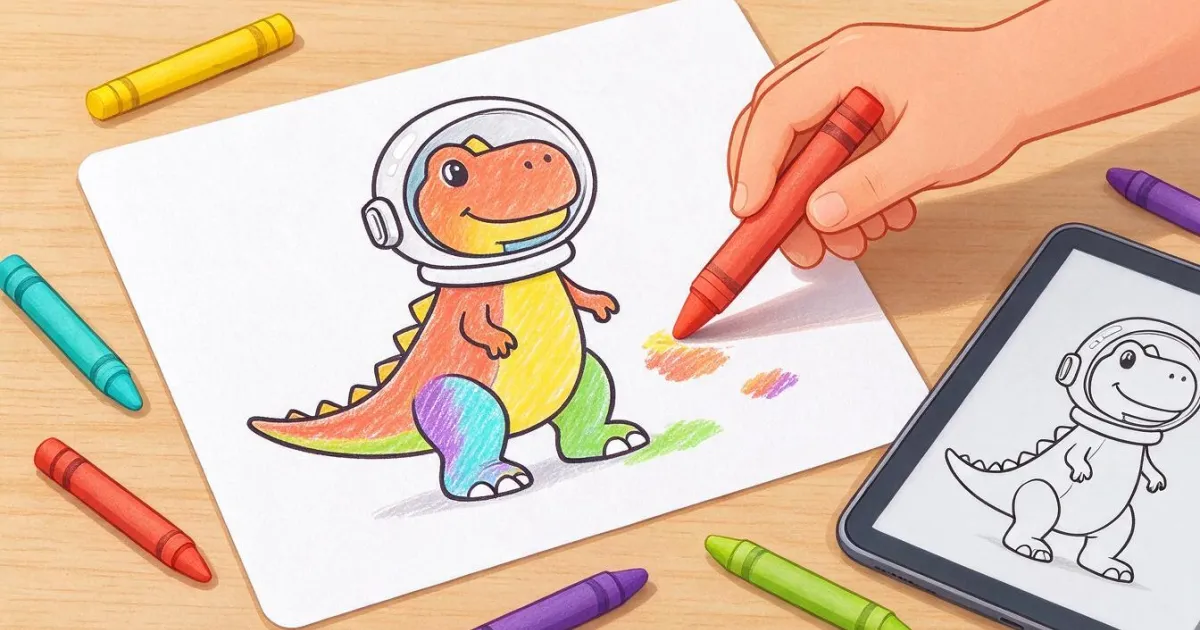
Because free sheet websites are closed catalogs: they have "dinosaur", they have "astronaut", but they do not have "a dinosaur with an astronaut helmet", which is what the child has asked for. A catalog with 2,000 sheets covers 2,000 ideas; a five-year-old produces a new idea every afternoon.
In addition, there are three problems that you only discover when you hit print:
- Resolution: the results of an image search are usually the thumbnail, not the original. A 400 px PNG stretched to 19 cm wide prints at 53 dots per inch: the outline comes out jagged and, when the child colors over it, the line disappears.
- Watermarks and gray backgrounds: many sheets come with the site's logo crossed out or a background that is not pure white, and that on paper becomes a gray stain that consumes ink.
- Level of detail: the same search returns mandalas with 200 petals and drawings with four strokes mixed together. If you give the mandala to a four-year-old, they will give up in two minutes.
And there is a fourth issue, which is not technical: many sheets that circulate are of characters with rights. For coloring at home, it is a minor debate, but if you are going to distribute copies in a classroom or workshop, it is advisable to check the license of what you print. This is not legal advice, just a practical warning: a sheet generated from scratch for you does not carry that problem.
What a coloring sheet must meet to work on paper
Five requirements, and all five can be checked by looking at the file before printing. If one fails, the sheet ends up in the trash within five minutes.
| Requirement | What to check | Why it matters |
|---|---|---|
| Resolution | ≥ 1,000 px on each side for a full A4 | Below that, the outline comes out jagged and the line breaks when coloring over it |
| Closed outline | That no area has an open edge | With the line open, the crayon escapes from the figure and the child gets discouraged |
| Pure black and white | No grays or shading | Light gray prints like a dirty stain and uses up colored ink |
| Thick stroke | Lines of ~1 mm or more in the printed size | A thin line disappears under the crayon and the drawing loses its shape |
| Real white background | White 255, not beige or cream | A non-white background fills the entire sheet with ink |
A detail that almost no one checks: the shading. Many sheets that appear to be line drawings have anti-aliasing grays on the edges. On screen, it is not noticeable; printed on a home laser, they become a gray halo around each outline.
How many pixels does a drawing really need to color on an A4
An A4 measures 210 × 297 mm (ISO 216 standard). If you print with margins of 8 mm, the usable area is 194 × 281 mm. A square image of 1024 × 1024 px occupying those 194 mm in width prints at 134 dots per inch: enough for thick coloring book outlines, insufficient for fine lines. The same image at 13 cm wide rises to 200 dpi, and at 8.7 cm hovers around 300 dpi.
| Printed Width | Effective resolution of a 1024 px image | Verdict for a line sheet |
|---|---|---|
| 19.4 cm (full A4, 8 mm margins) | 134 dpi | Correct with thick outline; noticeable in fine detail |
| 15 cm | 173 dpi | Good for any sheet |
| 13 cm (two per page) | 200 dpi | Very good; ideal for repeating the same drawing |
| 8.7 cm (four per page) | 299 dpi | Print quality; small size for 3-year-old hands |
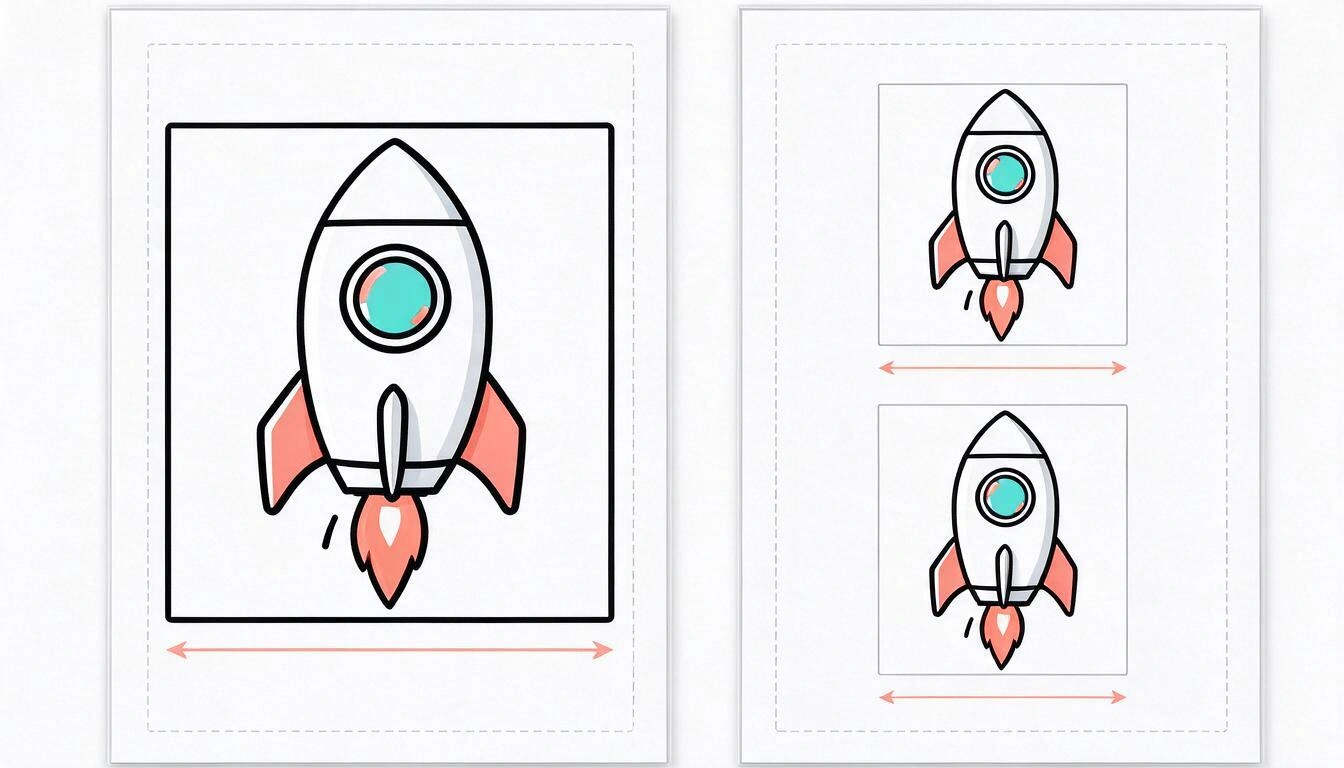
Translated to millimeters: at A4 width, each pixel of the image measures 0.19 mm. An outline of 6 px prints with a thickness of 1.1 mm, which is just what a thick crayon needs to not bleed out. An outline of 2 px ends up at 0.38 mm and disappears under the first stroke of a marker.
The practical rule is simple: never stretch a small image to fill the page. If you only have 600 px, print two copies on half a sheet (10 cm, 152 dpi) instead of one at 19 cm (78 dpi). You lose size and gain sharpness, and on top of that, you have a spare sheet for the sibling.
What level of detail corresponds to each age
The same drawing has to be different depending on who will paint it. Until the age of 5, the hand still does not control fine strokes, so small areas are not painted: they are crossed out. Starting from age 9, however, a sheet with four large shapes is finished in two minutes and becomes boring.
| Age | Areas per sheet | Outline thickness | What works |
|---|---|---|---|
| 3-5 years | 3 to 6 large shapes | Very thick | A single figure, centered, without background |
| 6-8 years | Moderate detail, medium areas | Thick and clear | Figure with a couple of contextual elements |
| 9-12 years | Many small closed areas | Clean and fine line | Scenes, patterns, mandalas with several rings |
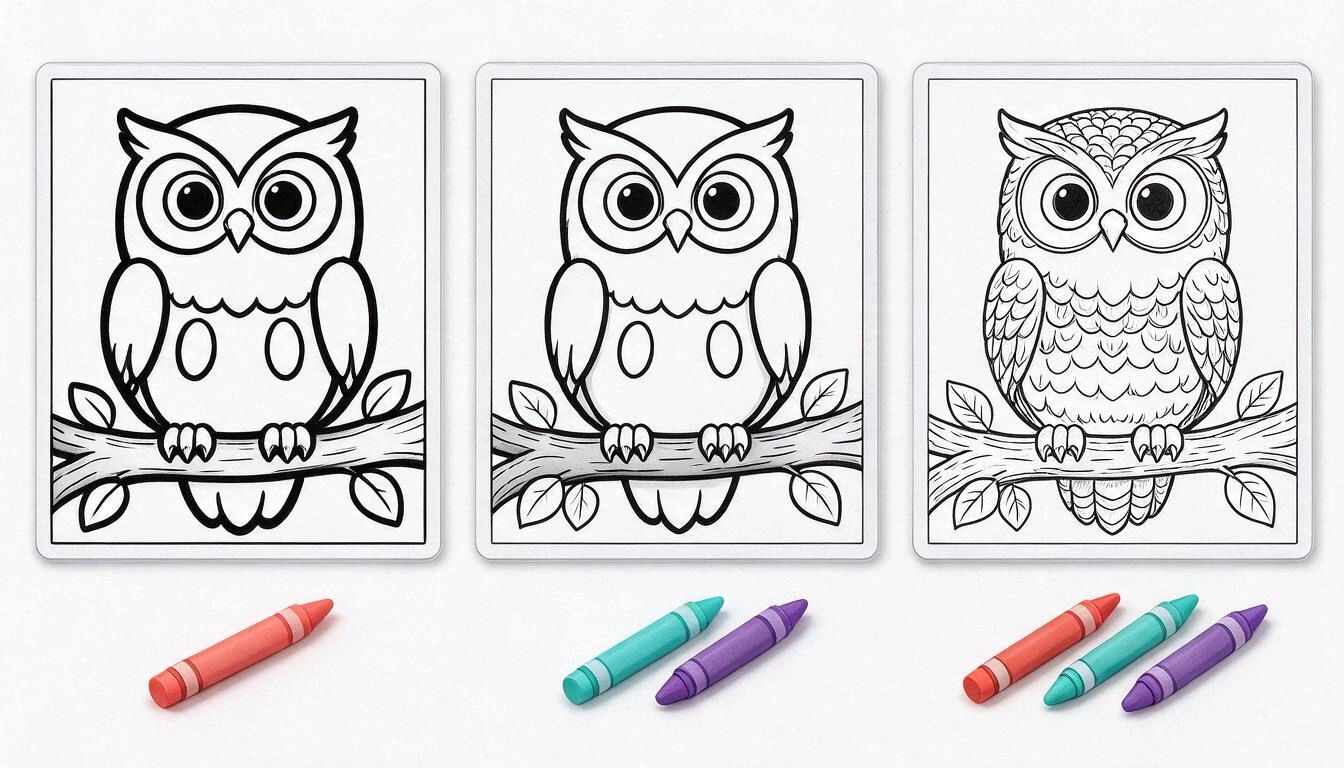
This same scale is what Zuki Paint applies automatically: when creating the profile, the age (from 3 to 12 years) is indicated, and that age enters the request with which the sheet is generated, in three bands —up to 5 years, from 6 to 8, and from 9 onwards—. There is no need to configure anything else: the same "a dinosaur in space" comes out with four large shapes in the profile of the younger child and with scales, craters, and stars in that of the older one.
How to create and print a custom sheet in four steps
With Zuki Paint, the complete journey —from the child's idea to the printed sheet— is four steps and does not require knowing how to read in any of them except the first, which is done by an adult.
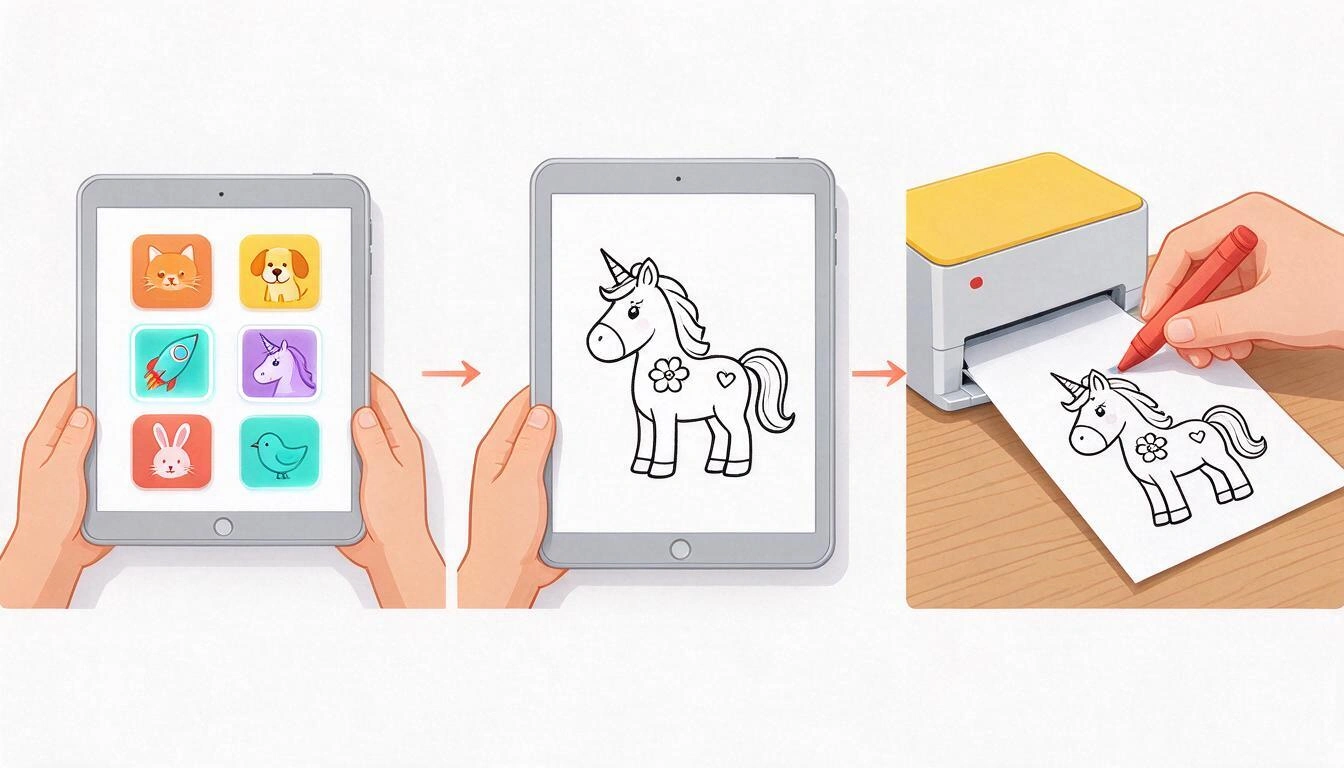
- Create the profile with the actual age. Name (up to 20 characters) and age from 3 to 12 years. Up to 8 profiles can fit, one for each child in the house or classroom, each with their drawings. This is the data that decides everything else, so don’t inflate it: if they are 4 years old, put 4.
- Request the drawing in the Imaginary Canvas. The child touches pictograms —dog, cat, dinosaur, space, princess, castle, car, unicorn, sea, forest, robot, party— and can combine up to three (that’s where "a dinosaur in space" comes from). If you prefer to refine it yourself, there is a free text field of up to 200 characters. For mandalas, there are eight themes —flowers, stars, animals, waves, leaves, butterflies, sweets, and shapes— and a "Surprise!" button that randomly chooses one.
- Wait for it to be generated. The sheet is created on the server and appears on the loading screen; the drawing is saved in "My drawings" even if you close the app in the meantime. The outline you receive is already normalized to 1024 × 1024 px and binarized to pure black and white: no grays, no cream background, and no watermark.
- Print. From the editor, the printer button opens a dialog with two options: "For coloring on paper" (only the lines, unpainted) and "My drawing in color" (as it has been painted on the screen). On a computer, the system’s print window opens with the sheet alone, without the app interface, and with margins of 8 mm. On mobile and tablet, the system’s share sheet opens, which includes "Print" and also allows saving the PNG. If none of that is available, the app downloads the image for you to print manually.
Print only the lines or print the already painted drawing: when to use each thing
These are two distinct uses of the same sheet and it is advisable not to confuse them: "To color on paper" takes out the clean outline for the child to paint with crayons; "My drawing in color" takes out what has already been painted on the screen, to hang or gift it.
| To color on paper | My drawing in color | |
|---|---|---|
| What it prints | Only the black outline on white | Painting + outline, as seen on screen |
| When it appears | Only if the drawing comes from a generated sheet (Imaginary Canvas or mandala) | Whenever there is something painted |
| What it is for | Hand painting, repeating the same sheet, workshop with several children | Fridge, gift for grandparents, school folder |
| Ink consumption | Minimum (black) | High if the background is painted |
An important detail that is easy to overlook: in a free drawing (blank canvas) there is no separate outline, so the option "To color on paper" does not appear. It only exists when the sheet has been generated by the app.
Workshop trick: generate the sheet once and print it as many times as there are children. The same outline painted by four different children yields four results and a better conversation than four different sheets.
What paper and what settings to use for the sheet to come out well
Normal office paper (80 g/m²) works for crayons and colored pencils. If you are going to use markers, increase to 120 g/m² or more: on thin paper, the marker bleeds through and stains the table and the next sheet.
- Print setting: scale "fit to page" or 100 %, never "fill page", which crops the drawing at the edges.
- Black and white / grayscale for the unpainted sheet: the outline is already pure black and this way no color ink is wasted.
- Eraser quality is sufficient for a thick line sheet and saves quite a bit of ink.
- No borders is not necessary: the 8 mm margins provide space to hold the sheet without smudging the drawing.
- If you print for several children, two sheets per page (option "2 pages per sheet" in the print dialog) increase the sharpness to about 200 ppi and use half the paper.
What Zuki Paint does not do
It is worth stating clearly so that no one arrives expecting something else. Zuki Paint does not have a catalog of pre-made sheets: each drawing is generated when you request it, so there is a wait involved and a connection is needed. It is also not a drawing course or a therapeutic tool, and we make no claims about child development.
Other real limitations of the current version:
- The sheet is generated by an image model: it does not always come out as you had in mind on the first try. If you are not satisfied, you request another; you cannot "retouch" the same one.
- There is undo (up to 12 steps), but no redo.
- Drawings are titled automatically ("Drawing 1", "Drawing 2"…) and cannot be renamed.
- There are no stickers or stamps, nor a free color palette: the palette is fixed, with 18 colors, and there are 4 stroke thicknesses.
- On mobile, printing goes through the system's share sheet, so the result depends on what the phone or tablet offers.
What it does do, and is the reason for this article: it converts a spoken idea into a printable sheet with a clean outline, with the detail adjusted to the age, in the same place where the child can also paint it on the screen.
One-minute checklist before hitting print
Review these six things and the sheet will come out right the first time:
- Does the image have 1,000 px or more on the side? If not, print it half sheet.
- Is the background pure white, with no cream or gray?
- Is there a watermark or crossed logo? Discard it.
- Is the outline closed in all areas that the child will paint?
- Does the detail fit the age of the one who will paint it, not yours?
- Have you set the scale to 100 % or "fit to page" and not "fill"?
Frequently Asked Questions
Where can I find coloring drawings to print that are exactly what my child asks for?
In a catalog of sheets, almost never: catalogs have loose themes, not combinations. The alternative is to generate a custom sheet. In Zuki Paint, the child chooses pictograms (up to three combined) or an adult writes the idea in a text field of up to 200 characters, and the app returns the outline ready to print.
What resolution does a coloring drawing need to print on A4?
To fill an A4 completely with 8 mm margins (19.4 cm of usable width), at least 1,000 px on the side, which gives about 134 dots per inch. With fewer pixels, don’t stretch it: print it at 13 cm and put two per sheet, and you will get about 200 dpi.
Can the drawings be printed from a mobile device or only from a computer?
From both, but they work differently. On a computer, the system's print window opens with the sheet alone. On a mobile or tablet, the system's share sheet opens, which includes "Print" and also allows saving the PNG; if the device does not offer that option, the app downloads the image.
Can I print the sheet in white to color it by hand and also color it on the tablet?
Yes, and they are two independent outputs of the same sheet. The print dialog offers "For coloring on paper" (only the lines) and "My drawing in color" (what is already painted on screen). The line-only option appears when the drawing comes from a generated sheet; in a free canvas, it does not exist, because there is no separate outline there.
What coloring drawings are suitable for a 3-year-old child?
Those from 3 to 6 with large shapes, very thick outlines, a single centered figure, and no background. Zuki Paint applies that criterion automatically when the profile is 5 years old or younger; from 6 to 8, it increases to medium detail, and from 9 onward, it generates detailed sheets.
Does the child need to know how to read to request a drawing?
No. The themes are chosen by touching pictograms with emojis (dog, dinosaur, space, unicorn, robot…) and the eight mandala themes are also images, in addition to the "Surprise!" button. The only thing that is written is the profile name, and the free text field, which is usually used by an adult.
Are the drawings saved or do I have to remember to hit save?
They save automatically. The app saves the canvas every 20 seconds, when exiting the editor, and when leaving the app in the background, so at most, the last 20 seconds of work may be lost. Everything remains in "My drawings" of the profile, can be reopened to continue painting, and can be downloaded.
Can I use these sheets in class or in a workshop?
The sheets are generated from scratch for you, so they do not carry the licensing problem of characters with rights that circulate on the internet. That said, this is not legal advice: if your center has its own rules about materials, review them.
How many child profiles can be created?
Up to 8 per installation, with name and age for each. Each profile has its own gallery of drawings and its star counter, and the age of each profile separately adjusts the complexity of the sheets it generates.
Zuki Paint is the drawing and coloring app for children aged 3 to 12 from AIsToHire: it generates coloring sheets based on what the child asks for, adjusts the detail to their age, allows them to paint on screen with paint bucket and brush, and prints both the outline in white for hand coloring and the already painted drawing. It is available at aistohire.com/zuki-paint-dibujos-colorear-ninos-ia-129.
Try Zuki Paint and create the sheet your child is asking for: choose the pictograms, let it generate with the detail suitable for their age, and print it in blank to color with crayons.
Try Zuki Paint and create the sheet your child is asking for: choose the pictograms, let it generate with the detail suitable for their age, and print it in blank to color with crayons.Keep reading
View all articles →
Less than an hour of screen time a day: how to spend it wisely if your child is between 3 and 12 years old

Discussing via WhatsApp or talking in person: what science says about couple conflicts through messages
Mind map, concept map, and outline: differences and when to use each one