 StartHub
How to Organize Browser Bookmarks When You Already Have Hundreds: A 7-Step Method
Team at StartHubWritten with AI assistance17 min readIn summary
- The problem is not that you have too many bookmarks: it's that the browser bar is a flat list ordered by when you saved, not by what you use. Saving takes a second; finding, increasingly more.
- Before reorganizing anything, export your bookmarks to HTML (the four desktop browsers have used the same format since the 90s) and measure them: in this article, you have three commands to count links, detect duplicates, and find the ones that are already dead.
- Don’t migrate 2,000 bookmarks. Stick with the 40-60 of your "typical day": those are the ones you actually open each week.
- StartHub, the mini bookmark app from AIsToHire, organizes those links into pages (tabs) with 1 to 6 columns and blocks by category; when you paste a URL, it imports the actual icon and title of the site.
- What StartHub does not do: it does not import the browser's favorites file, it has no extension, and it does not sync with your bookmarks. There is a whole section of this article dedicated to that, so you won’t be surprised.
If you’ve arrived here looking for how to organize your browser bookmarks, it's most likely that you have between 300 and 3,000 saved, that you don't remember 90% of them, and that you end up searching Google for what you already had saved. This article is a 7-step method to fix it, with real commands you can run on your own bookmarks file, and in the end, it mounts the result in StartHub, the bookmark panel from AIsToHire: an organized link desktop in pages and blocks. Steps 1 to 3 are useful even if you don't use any tools.
Why do you have hundreds of bookmarks and can’t find any?
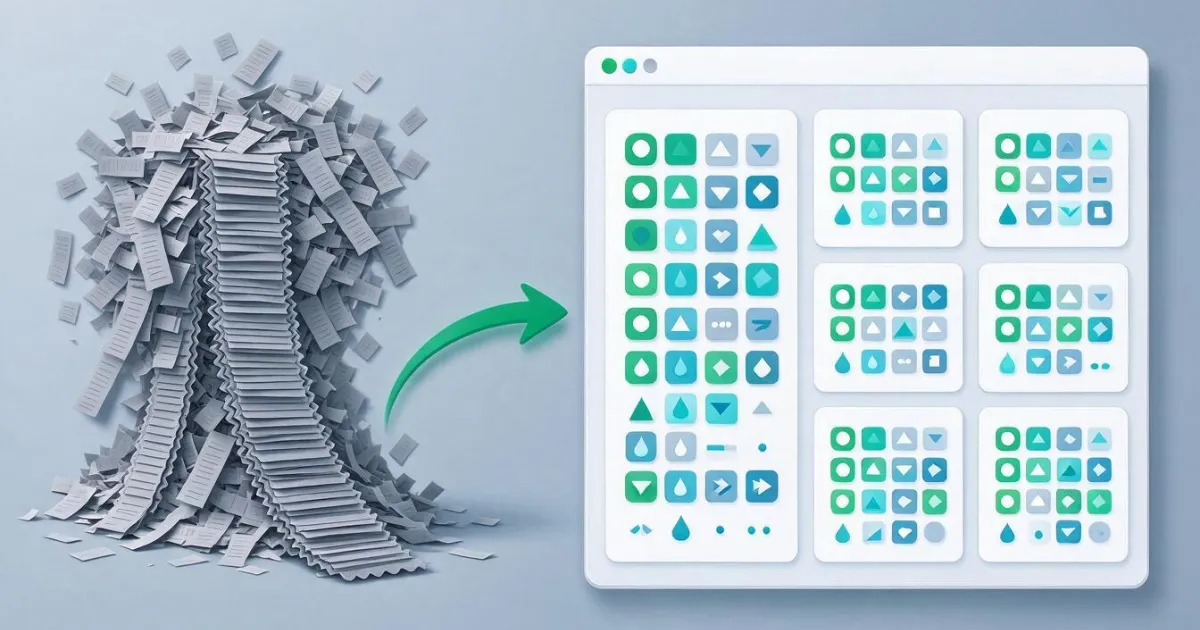
Because saving and organizing have very different costs. Saving a bookmark costs a keyboard shortcut; classifying it costs a decision. Since the browser does not force you to decide, everything falls into the same flat list and the collection grows without pruning: the day you search for something, the cost you saved by saving is multiplied.
This is compounded by three design flaws in the bookmarks bar that no amount of folders can fix:
- Order by save date, not by use. What you open daily is buried under what you saved once "to read later".
- Folder hierarchy, which hides. A closed folder is a link that doesn’t exist: you have to remember it’s there and in which folder.
- Zero visual recognition. The bar shows tiny favicons and truncated text; your brain recognizes a 64 px icon in a grid much faster than a line of text in a list of 400.
The typical result: you use between 30 and 60 links recurrently, and the other hundreds only serve to make noise on top of them.
Step 1: export your bookmarks before touching anything
Exporting takes less than a minute and gives you two things: a backup in case you prune too much, and a text file on which you can measure. The four desktop browsers export to the same format, the Netscape Bookmark File Format (the file starts with <!DOCTYPE NETSCAPE-Bookmark-file-1>), inherited from Netscape Navigator and still in use in 2026: that’s why any browser can read the export from any other.
| Browser | Bookmark Manager | How to export |
|---|---|---|
| Chrome | chrome://bookmarks (Ctrl+Shift+O / Cmd+Opt+B) | Menu ⋮ from the manager › Export bookmarks |
| Edge | edge://favorites (Ctrl+Shift+O) | Menu ⋯ › Export favorites |
| Firefox | Library › Manage bookmarks (Ctrl+Shift+O) | Import and Backup › Export bookmarks to HTML |
| Safari | Bookmarks sidebar | File › Export › Bookmarks |
Menus change location between versions. If you don’t see the option, search "export" in the browser's help: the function has been there for two decades and has not been removed.
Save the file as bookmarks.html in a folder where you can open a terminal. Do not delete anything from the browser yet: until step 7, the browser remains your safety net.
Step 2: measure what you have with three commands
Don’t decide from memory how many bookmarks you have or which ones are excess: count them. These three commands work on the exported HTML in any terminal with grep, sed, and curl (Linux, macOS, or WSL / Git Bash on Windows). They have been tested with a real export file before publishing this article.
How many bookmarks do you really have:
grep -o 'HREF="[^"]*"' bookmarks.html | wc -lYour 20 most repeated domains — here you can already see your future blocks, because people save in clusters (seven links from the same documentation, four from the same bank):
grep -oE 'HREF="https?://[^/"]+' bookmarks.html \
  | sed -E 's|HREF="https?://||' \
  | sort | uniq -c | sort -rn | head -20
Which links are dead (returns the HTTP code of each unique URL and filters those that do not respond with 2xx; 000 means there was no response: domain down, nonexistent DNS, or blocked):
grep -oE 'HREF="https?://[^"]+' bookmarks.html \
  | sed 's/HREF="//' | sort -u \
  | while read -r u; do
      echo "$(curl -s -o /dev/null -w '%{http_code}' -m 8 -L "$u") $u"
    done | grep -v '^2'
The last one takes time: it counts approximately one second per live link and up to 8 for each dead one (that’s the -m 8 from the timeout). Leave it running in the background while you do step 3. A 10-20% of broken links in a collection of more than three years is typical.
What no command tells you is which ones you use. That is solved in the next step.
Step 3: the type day rule — stick with 40, not 400
The criterion for deciding what goes to the new panel is not "Is this useful?" (everything seems useful), but "Have I opened it in the last 30 days?". For three working days, every time you go to open something out of habit, jot it down in a note. Almost everyone ends up with a list of between 30 and 60 URLs, and those are the only ones that deserve a visible spot.
Real distribution examples of those 40-60 links, depending on how you work:
| Profile | Pages (tabs) | Blocks per page | Total links |
|---|---|---|---|
| Remote work in a company | Work, Personal | 4-6 (email and calendar, internal tools, documentation, HR) | 35-50 |
| Freelance with multiple clients | One per client + Admin | 3-4 per client (their networks, their drive, their panel) | 60-120 |
| Study or exam preparation | One per thematic block | 1 per subject (syllabus, tests, forum) | 40-80 |
| Domestic use | Home | 4-5 (banking, shopping, leisure, administration) | 25-40 |
With the rest of the bookmarks, three honest options: leave them where they are (the export is already your copy), delete them from the browser if step 2 said they are dead, or archive them in a folder called "Archive 2026" and forget about it. What you should not do is try to migrate them: you would rebuild the same mess elsewhere.
Step 4: design the structure before pasting a single link
StartHub organizes links into four nested levels: page › column › block › link. Deciding those four levels on a napkin before you start saves you from having to redo it: moving things later is done by dragging, but thinking twice is faster than dragging forty times.
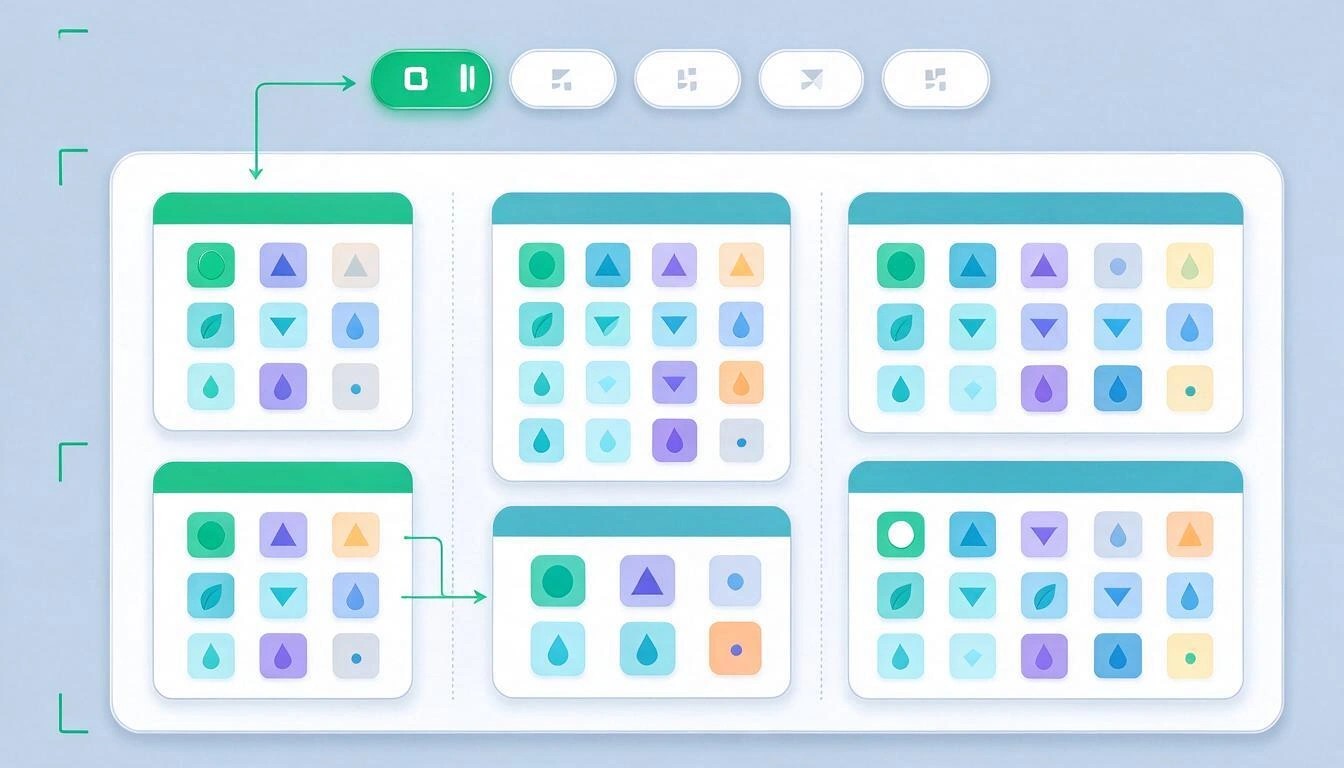
| Level | What it is | When to create a new one | What StartHub allows |
|---|---|---|---|
| Page | A complete tab, with its own background and layout | When you change mental context (work / home / a client) | Multiple pages, reorderable by dragging the tab; the panel loads up to 200 |
| Column | The vertical division of a page | To separate the daily (left) from the occasional (right) | From 1 to 6 columns per page, each with relative width S, M, L or XL |
| Block | A card with a title that groups links | When you have 3 or more links on the same topic | Up to 500 blocks; they can be dragged between columns |
| Link | A site, with its icon and title | — | Up to 5,000 links; they can be dragged between blocks |
Two practical rules that come from how the app is made:
- Put the page you use the most at the front. The panel always opens with the first tab, so drag that to position 1.
- Widths are proportional, not fixed. S, M, L, and XL distribute the total width with weights 1, 2, 3, and 4: an XL column next to an S occupies four times more, but together they always fill the screen. On mobile (screens less than 768 px), everything stacks in a single column, so the order of the blocks matters more than the columns.
Each page can also have its own background: one of the 8 gradients from the gallery or one of your images (JPG, PNG, WebP or GIF). It’s not gratuitous decoration: the different color is what tells you at a glance that you are in "Work" and not in "Personal".
Step 5: add the links — you paste the URL and the icon and title fill in automatically
This is the part that, done manually in the browser, feels tedious. In StartHub, you paste the URL in the block form and, when you leave the field, the server visits that site, reads its actual <title> and downloads its icon: the form fills in automatically and you just confirm or correct the title.
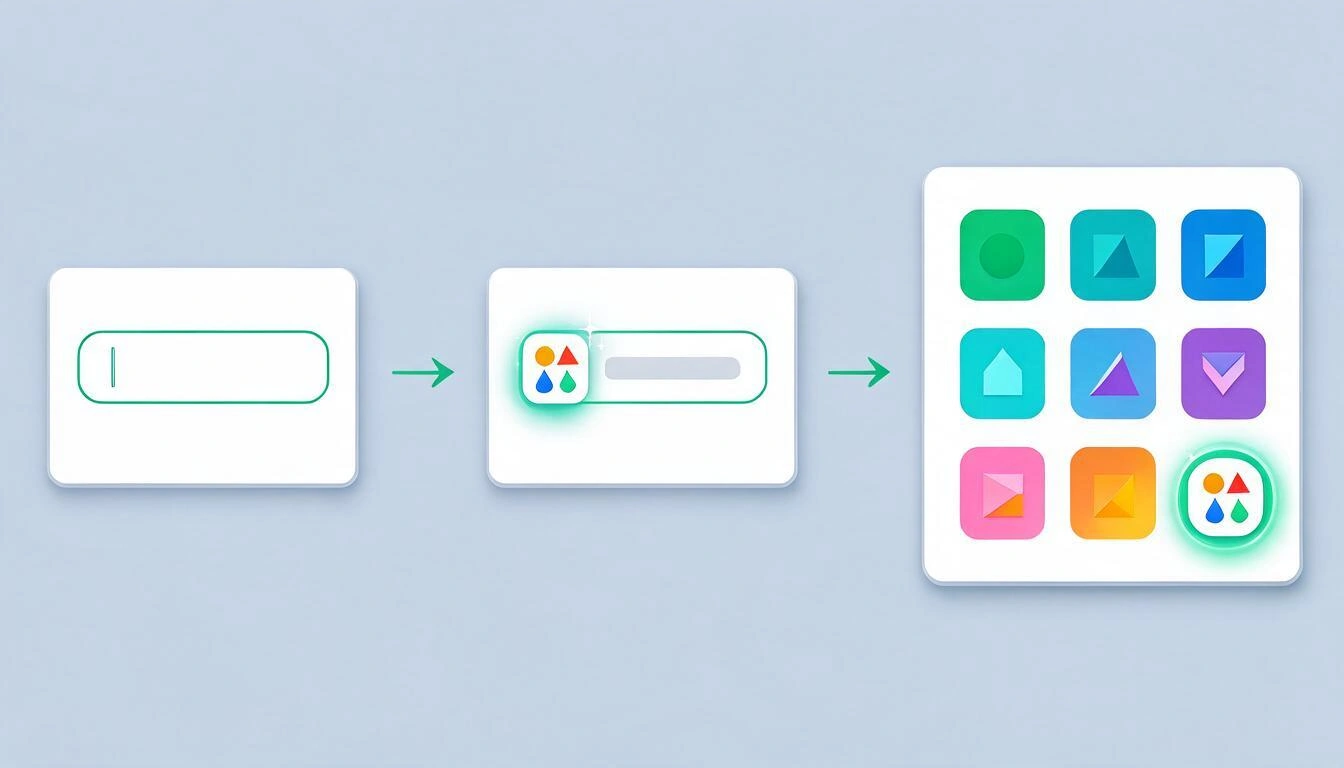
To obtain the icon, StartHub tries three cascading sources and keeps the first one that works:
- The
<link rel="icon">that the site itself declares in its HTML. It is the authorized source and is always up to date; if the site changed its logo last month, you will see the new one. /favicon.icoat the root of the domain, the classic convention.- Google’s favicon service, as a last resort for domains that declare nothing.
The obtained icon is normalized to a 64×64 PNG and stored in the platform's CDN: your panel does not make requests to the original site every time you open it, so it loads quickly and does not filter your browsing to third parties. If none of the three sources yield results, the link is saved anyway and displayed with a generic globe icon; you can edit the title at any time.
Shortcut to load a batch: the app's AI assistant accepts a list of URLs and places them in the block you specify, up to 15 per batch, asking for your confirmation before writing anything. It detects duplicates by comparing the normalized URL (ignores https://, www., the trailing slash, and campaign parameters like utm_* or fbclid), so if you paste the same thing twice, it doesn’t duplicate. And it cannot delete: page, block, and link deletion operations are not available for the assistant, only for you from the interface.
Step 6: list or grid of icons, and when to use each
Each block chooses its view separately with a button in its header, and the decision is not aesthetic: the list prioritizes the amount of information per centimeter and the grid prioritizes the speed of recognition. The short rule is grid for what you open daily, list for what you consult.
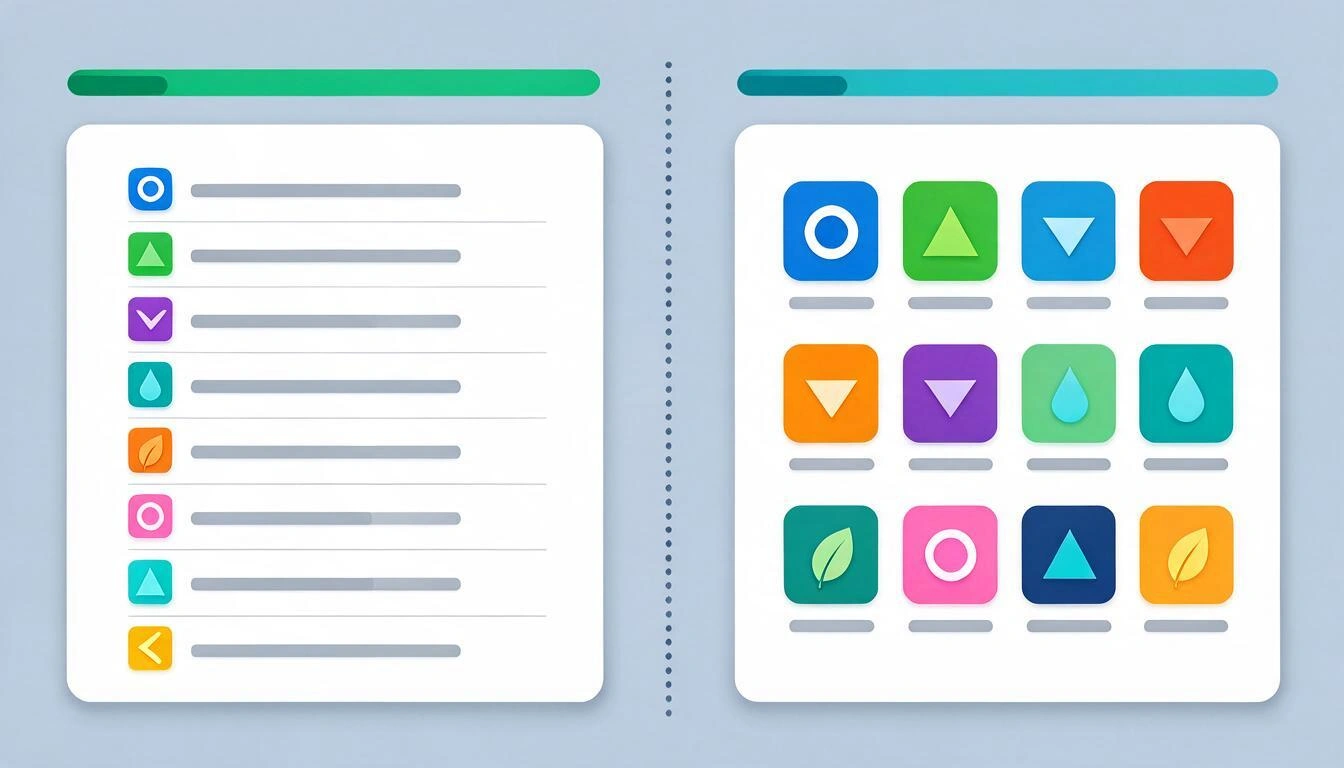
| List view | Icon grid view | |
|---|---|---|
| What it shows | One row per link: small icon + full title | Mosaic of icons, with the title below or not |
| Links it handles well | 8-20 per block | 4-12 per block |
| What makes you read | The title | The logo |
| Ideal for | Documentation, links with similar names, things you consult | The 6-10 tools you open every day |
| Available settings | — | Normal or large icon size; show or hide the title |
A functioning panel usually mixes the two: two or three blocks in grid at the very top (email, calendar, tool of the day) and the rest in list.
Above the blocks, you also have two distinct searchers, and it's important not to confuse them:
- The filter for your links, which instantly hides everything that doesn't match what you type, comparing the text against the title and the URL. Important: it filters the blocks of the page you have open, not of the entire panel.
- The web searcher, which opens the search in a new tab with the engine you choose among Google, Bing, DuckDuckGo, and YouTube. Your choice is remembered on that device.
Step 7: set it as your homepage and review it for 10 minutes a month
A panel that doesn't open by itself is not used. Copy the URL of your StartHub panel and set it as your homepage and as your browser's startup page: it's a native setting, no need to install anything.
| Browser | Where it’s configured |
|---|---|
| Chrome | Settings › On startup (startup pages) and Appearance › Show home button |
| Edge | Settings › Start, home page, and new tabs |
| Firefox | Settings › Home › Homepage and new windows |
| Safari | Settings › General › Homepage is |
Honest nuance: the homepage and startup pages are browser settings and work with any URL. Replacing the new tab (the one that opens when pressing Ctrl+T in Chrome or Edge) requires an extension, and StartHub does not have an extension; for that, use the home button or a keyboard shortcut.
And then, maintenance. Ten minutes once a month, with three gestures:
- What you haven't opened in 60 days, out of the visible block. Either to an "Archive" page, or deleted.
- A block with more than 15 links splits in two. If you don't know where to cut it, it's because the block didn't have a clear theme.
- Run the dead links command from step 2 on your annual export again. Sites die, and a panel full of 404 errors stops being trustworthy.
What StartHub does and what it doesn’t (so you don’t get surprises)
StartHub is a bookmark panel that you build by pasting URLs; it is not a favorite importer nor a synchronized replacement for the browser's manager. This table is the complete contract, verified against the app in October 2026.
| It does | It doesn’t |
|---|---|
| Multiple pages (tabs), each with its background and layout | Import the HTML favorites file from the browser |
| From 1 to 6 columns per page, with relative width S/M/L/XL | Browser extension or "save this page" button |
| Blocks by category, in list view or icon grid | Synchronize in both directions with the browser bookmarks |
| Import real icon and title when pasting the URL | Cross tags, folders within a block or view with site capture |
| Rearrange pages, blocks, and links by dragging | Trash or undo: what you delete is deleted |
| Filter your links by title and URL (on the open page) | Export your panel to a file |
| Web searcher with Google, Bing, DuckDuckGo, and YouTube | Share a page of the panel with someone else or publish it |
| Custom background per page: 8 gradients or your image | Save the content of pages for offline reading |
| Works on mobile: everything stacks in a column | Replace the browser's new tab |
Two practical consequences of that list. The first: since there is no importer, the initial work is manual, and that's why step 3 insists on not exceeding 40-60 links (at about 10 seconds per link, that’s 10 minutes; with the assistant, less). The second: since there is no trash, deleting a page also deletes all its blocks and links, with no going back. The app protects you from a single mistake, the one of ending up with nothing: it doesn’t allow you to delete the last remaining page.
What comes out of your panel
When you paste a URL, the platform's server —not your browser— visits that site once to read its title and its icon. This is the only request to third parties that triggers the panel, and it happens at the moment of saving the link, not every time you open the panel.
That visit is intentionally limited:
- Only
httpandhttps, with a maximum time of 8 seconds per request and a size limit for the icon. - Blocked internal addresses:
localhost,.localand.internaldomains, the loopback range, and private and reserved IPs (including169.254.169.254, the metadata IP for cloud servers). This is standard protection against SSRF: it prevents a URL pasted in the form from being used to probe the internal network. - Rehosted icons, never linked from the source: your panel requests images from the AIsToHire CDN, not from the sites you saved.
The link filter, moreover, is resolved in your browser: typing in it does not generate any queries to the server. The web search does open the engine you choose, so, logically, that search is retained by that engine.
Frequently Asked Questions
Can I import Chrome favorites to StartHub?
No. StartHub does not read the HTML bookmark file exported by Chrome, Edge, Firefox, or Safari: links are added by pasting their URL. That is the purpose of the method in this article, which makes you stick with the 40-60 links you actually use instead of migrating hundreds. To speed things up, the app assistant accepts up to 15 URLs at a time and places them in the block you indicate.
Does StartHub have a browser extension?
It does not have an extension. It is a web application within the AIsToHire platform: you log in with your account from any computer and have your panel. The trade-off is that there is no "save this page" button in the browser bar, nor can you replace the new tab; you can set it as a homepage and as a startup page, which are native browser settings.
How many links and blocks can a panel hold?
The panel loads up to 200 pages, 500 blocks, and 5,000 links. These are limits well above normal usage: a well-maintained panel stays at one to four pages and between 40 and 120 links. Within each page, you can have from 1 to 6 columns.
Can I have one page for work and another for home?
Yes, and it is the recommended use. Each page is an independent tab with its own blocks, number of columns, and background, so a glance at the color is enough to know where you are. The tabs can be reordered by dragging them, and the panel always opens to the first one, so place the one you use most in front.
What happens if I accidentally delete a page?
It is lost along with all its blocks and links: there is no trash or undo. The only safety net is that the app does not allow you to delete the last remaining page. If you are going to reorganize extensively, keep the HTML export from the browser from step 1 handy.
Why do some links show a gray balloon instead of their icon?
Because the favicon could not be obtained through any of the three methods (the icon declared in the HTML, /favicon.ico, and Google’s favicon service). This happens with sites behind a login, intranets, and domains that do not expose an icon. The link works the same; if the site fixes its icon, re-saving the URL will attempt the import again.
Does the search bar at the top search all my links or just the open page?
The link filter acts on the blocks of the page you have open and compares what you type with the title and URL of each link. To search the entire panel at once, ask the app assistant, which does traverse all pages and can also filter by domain.
Does it work well on mobile?
Yes, with a design difference: on screens less than 768 pixels, the columns disappear and all blocks stack in a single column, in the order they have. Therefore, if you are going to use it a lot from your phone, place the important blocks at the very top instead of relying on horizontal position.
Do I have to pay to use it?
The account is created for free on AIsToHire from the StartHub landing page, and there you can see the current conditions before using anything. There is no need to install or configure anything: you log in, create your first page, and start pasting URLs.
StartHub is the mini app from AIsToHire that turns your links into a visual panel: pages with tabs, blocks by category, icons and titles automatically imported when pasting the URL, and its own search engine. It is at StartHub — Your Personal Bookmark Dashboard. Follow steps 1 to 3 of this article with your own bookmarks —export, measure, keep the 40 you use— and set up the result in your StartHub panel in ten minutes.
Set up your dashboard on StartHub: create your free account, paste the 40 links you actually use, and turn it into your homepage.
Set up your dashboard on StartHub: create your free account, paste the 40 links you actually use, and turn it into your homepage.Keep reading
View all articles →
Chrome finally lets you search your bookmarks: why it's late and how to organize your links in the meantime

Why Your Car Insurance Increased in 2026: Average Premium of €1,412 and Historic Record

Discussing via WhatsApp or talking in person: what science says about couple conflicts through messages