 Video Effects
How to animate a photo with AI and turn it into a video: which effect to choose based on the photo you have
Team at Video EffectsWritten with AI assistance16 min readIn summary
- Animating a photo with AI is not retouching the image: an image-to-video model generates new frames from a single photo and returns a short clip, 5 or 10 seconds long.
- The result depends more on the source photo (sharpness, light, background, and framing) than on the effect you choose. A blurry or backlit photo cannot be fixed with an effect.
- There are two distinct ways to animate a photo, and it’s best not to mix them: motion effects (the camera or an element moves and the subject remains the same) and scene effects (the AI adds something that wasn’t there: a hug, a rain of bills, a dressed-up pet).
- The format is decided before generating, not after: the video inherits the aspect ratio of the input image, so changing from 9:16 to 1:1 requires regenerating.
- Video Effects, the mini app from AIsToHire for this, comes with 57 pre-prepared effects (22 motion + 35 viral), cropping to 5 formats and MP4 video at 720p for 5 or 10 seconds, unedited and without writing prompts.
You have a photo you like —a portrait, your store’s product, the dog, a travel photo— and you want to turn it into a short video to publish. You search for "animate a photo", try three tools and the same thing always happens: either the face gets distorted, or the video comes out in a format that doesn’t fit Reels, or you end up fighting with a text field asking you for a prompt in English. This guide explains what truly decides the result and how to make each decision, using the concrete example of Video Effects, the app from AIsToHire that does exactly this: you upload an image, choose an effect from a catalog, and receive the video.
What does "animating a photo" with AI really mean?
It means that an image-to-video model takes your photo as the first frame and inventing the next ones, trying to make the movement physically coherent with what it sees. It’s not a digital zoom or a pan over a static image like in a classic video montage: the model generates new pixels, which is why it can move hair, ignite a flame, or rotate a product on its axis.
This imposes three limits that are good to accept from the beginning:
- They are short clips. In Video Effects, 5 or 10 seconds. There is no such thing as a "one-minute video from a photo".
- The more movement you ask for, the greater the risk of distortion. A blink or a breeze in the hair usually works well; a whole person walking does not.
- It is not reversible or editable. The video comes out as it comes. If you are not convinced, it is regenerated with another effect or another photo.
The source photo decides most of the result
Before choosing an effect, look at the photo. An image-to-video model can only animate what it distinguishes: if it cannot tell where the face ends and the background begins, it will invent the boundary, and that’s where the distortions that everyone complains about appear.
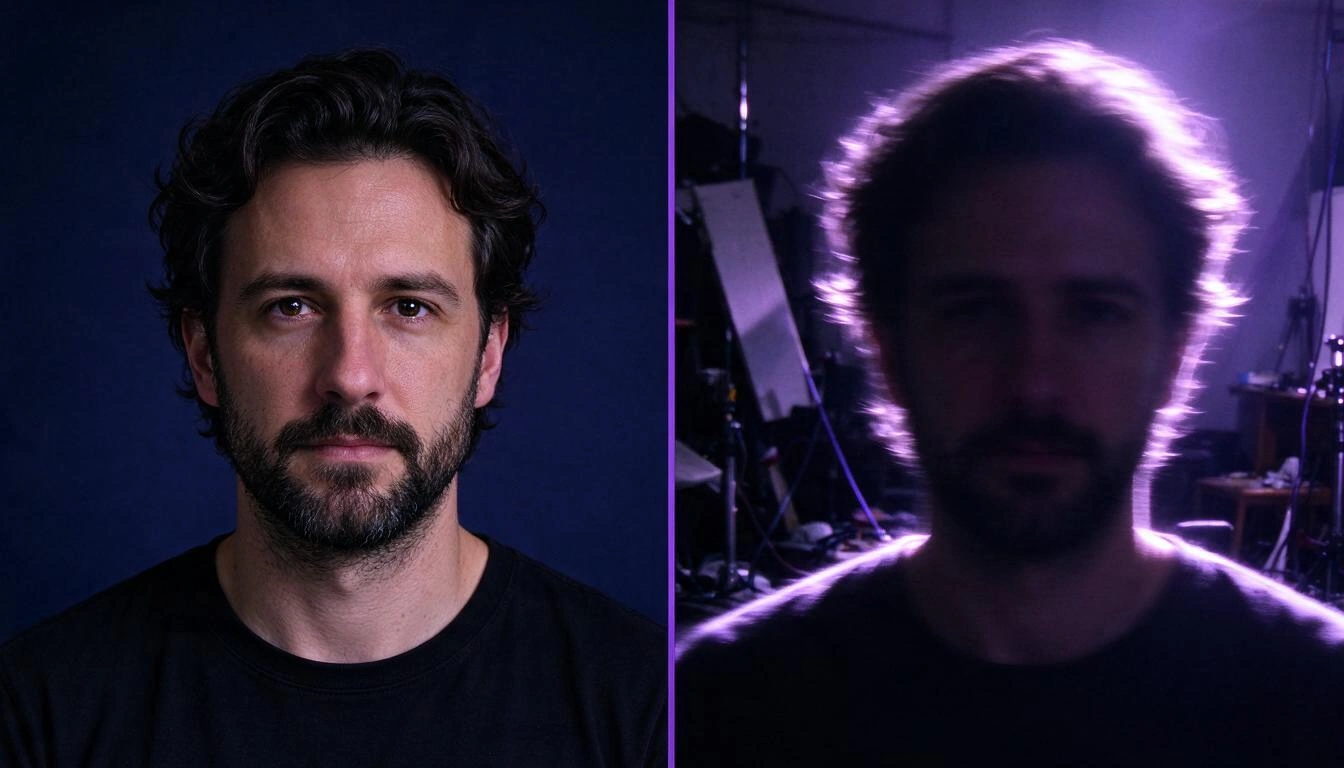
| Problem in the photo | What happens in the video | How to fix it before uploading |
|---|---|---|
| Blurry or out-of-focus photo | The movement "drags" the edges and the face becomes like plasticine | Use another shot; there is no effect that recovers sharpness that does not exist |
| Strong backlight, face in shadow | The AI fills in the features it cannot see and changes the face | Choose a photo with soft front or side lighting |
| Cluttered background (shelves, people, branches) | Background elements blend with the subject when moving | Smooth or blurred background, or crop closer |
| Several people very close together | Faces exchange features among themselves | A clear main subject works much better |
| Subject cut off by the edge | The effect distorts right where the photo is cut off | Leave space around the subject |
| Screenshot with text or logos | The text becomes unreadable scribbles | Avoid images with text: no model preserves it |
| Very low resolution (thumbnails, forwarded WhatsApp) | Soft video, lacking detail | Part of the original, not from a forwarded copy |
Practical rule: if enlarging the photo to 100 % on the mobile makes the face look soft, the video will see it as equally soft.
Video Effects accepts JPG, PNG, WebP, and GIF up to 10 MB, and validates the format by reading the first bytes of the file instead of relying on the extension. If an image is too large, try compressing it alone before rejecting it, and correct the EXIF orientation, which is the classic cause of a mobile photo "coming out rotated".
The two types of effect: movement and scene
They are not the same technology and do not serve the same purpose. A movement effect keeps your photo and adds a displacement (camera, hair, water, light). A scene effect puts something in the image that wasn't there: a bear hugging you, bills falling, your dog dressed as a chef. The first preserves the scene; the second transforms it.
| Movement effects | Scene effects (viral) | |
|---|---|---|
| How many are in Video Effects | 22 | 35 |
| What it does | Moves what is already in the photo | Adds a predefined scene |
| Duration | 5 or 10 seconds, your choice | 5 seconds, fixed |
| Fidelity to original | High: the subject remains | Medium: the AI reinterprets the scene |
| What it’s for | Product, portrait, landscape, brand content | Entertainment content for social media |
In both cases the prompt is already written: each effect carries its instruction behind it, in English and refined, which is why there is no text field to write in. It’s a design decision, not a lack that can be circumvented: the scene effects engine doesn’t even allow free instructions.
Which movement effect do I choose according to my photo?
The 22 movement effects are grouped into four families: cinema, natural, expressive, and product. The family tells you what moves; the "works well with" column tells you what photo you need.
Cinema: the camera moves, not the subject
| Effect | What it does | Works well with |
|---|---|---|
| Zoom In | Slow and dramatic close-up of the subject | Portraits, landscapes |
| Zoom Out | Zoom out that reveals the context | Architecture, group photos |
| Ken Burns | Smooth panning with subtle zoom, documentary style | Family and archival photos |
| Dolly Push | The camera moves forward into the scene with depth | Dramatic scenes |
| Orbit | Subtle rotation around the subject | Products, portraits |
| Parallax 3D | Separates foreground and background and moves them at different speeds | Landscapes, layered scenes |
These are the safest: since the subject does not deform (only the point of view changes), it’s rare for it to go wrong. If this is your first trial, start here.
Natural: a physical element of the scene moves
| Effect | What it does | Works well with |
|---|---|---|
| Hair Flow | Hair moves with a gentle breeze | Portraits |
| Clothes Wave | Clothing and fabrics flutter | Fashion, full-body portraits |
| Water Ripple | Ripples and reflections on the water | Landscapes with water |
| Leaves Rustle | Leaves and branches sway with the wind | Nature |
| Cloud Drift | Clouds moving, time-lapse effect | Skies, landscapes |
| Fire Flicker | Flames with realistic flickering and bounced light | Candles, bonfires, fireplaces |
Key: the element must be in the photo. "Water Ripple" over a photo without water does not create a lake; it produces a strange result.
Expressive: the face moves
| Effect | What it does | Works well with |
|---|---|---|
| Breathing | The subject breathes: shoulders and chest rise and fall | Portraits, pets |
| Eye Blink | Natural blinking and slight change of gaze | Portraits |
| Subtle Smile | A smile that forms gradually | Portraits |
| Head Turn | Subtle head turn towards the camera and back | Portraits |
| Morph Glow | Cinematic glow pulsing around | Epic content |
| Glitch Art | Stylized digital distortion, cyberpunk aesthetic | Technology, gaming |
This family is the most delicate: these are the effects that touch facial features. The first four are designed to preserve identity, but the worse the photo, the more any deviation will be noticeable. If the face matters, use the best photo you have.
Product: designed for e-commerce
| Effect | What it does | Works well with |
|---|---|---|
| 360 Rotate | The product spins on its axis like on a studio platform | Product sheets |
| Spotlight | A light sweeps across the product revealing its texture | Jewelry, technology |
| Floating | The product levitates with dynamic shadow | Packaging |
| Unbox Reveal | Reveal with smoke and light clearing | Launches |
This is the use case with the best effort/result ratio: the catalog photo already exists, is well-lit, and has a clean background —just what the model needs— and the video is published in the sheet or on social media without setting up a set.
And what are the 35 viral effects? What are they exactly?
They are predefined scenes that the model mounts over your photo: you place the person, pet, or object, and the effect provides the situation. They last 5 fixed seconds and cannot be modified; the point is precisely that they are recognizable. In Video Effects, there are 35 assets:
| Theme | How many | Some examples |
|---|---|---|
| Hugs and affection | 6 | Jesus Hug, Santa Claus Hug, Polar Bear Hug, Brown Bear Hug, kiss with fictional girlfriend or boyfriend |
| Pets | 8 | Pet Dance, Pet Chef, Pet Lion, Pet Wizard, Pet Warrior, Pet Bee, Pet Delivery, Pet Moto Rider |
| Moments and reactions | 8 | Marry Me, Instant Kid, Heart Effect, Cry Cry, Thumbs Up, Media Interview, Lie Flat, Jazz Jazz |
| Power and action | 8 | Lightning Power, Magic Fireball, Fly Fly, Double Gun, Gun Shot, Building Collapse, Office Escape Plow, Smoke Smoke |
| Humor and transformation | 5 | Dollar Rain, Watermelon Bomb, Long Hair, Wool Curly, Santa Gift |
What to honestly expect: these effects reinterpret the scene. The face resembles, but is not an exact clone, and the background may change. For entertainment, it’s perfect; for a corporate photo that needs to be faithful, use the movement effects.
The format must be decided before generating (and almost no one mentions this)
The video model inherits the aspect ratio of the input image. There is no adjustment "give it to me vertically": what you need to do is crop the photo to the desired aspect ratio before generating. Video Effects does this for you with a centered crop, and shows it as a mask over the preview so you can see what gets cut off.
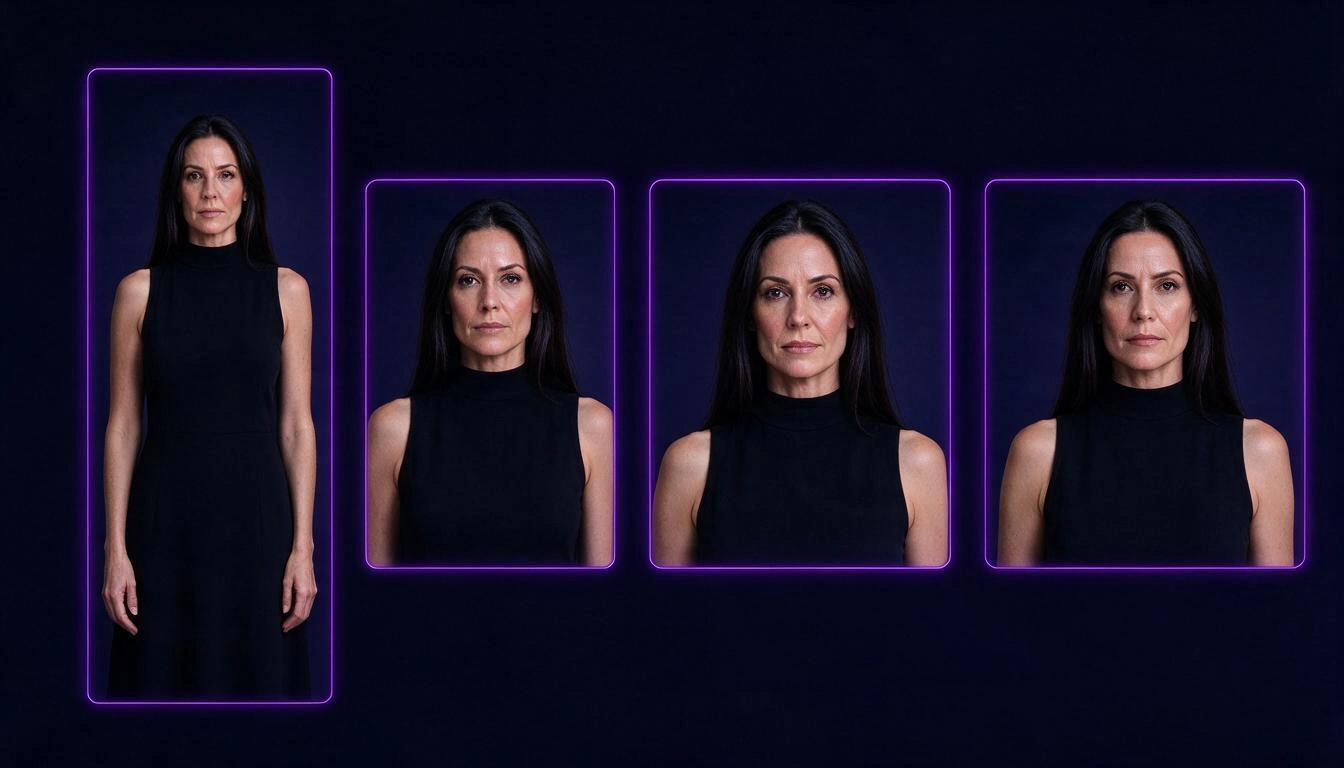
| Format | Where it fits | What you lose by cropping | When to choose it |
|---|---|---|---|
| Original | Anywhere | Nothing | If you don't know where you're going to publish it |
| 9:16 | TikTok, Reels, Shorts, stories | The sides: a horizontal photo loses almost all the environment | Full screen video on mobile |
| 4:5 | Instagram and Facebook feed | Some width or height | Feed, where it takes up more height without being totally vertical |
| 1:1 | Square feed, thumbnails, product cards | What is left over from the long side | Catalog and grids |
| 16:9 | YouTube, websites, presentations | Height: a vertical photo loses head and feet | Horizontal player |
Two practical consequences:
- The crop is centered. If your subject is off-center, the 9:16 will cut it. Crop the photo yourself before uploading it and place the subject in the center, or generate in "Original".
- Changing format means generating again. The video already exists in one aspect ratio; it is not re-framed afterwards. Decide where you are going to publish before hitting generate.
How long does it take and how much does it cost?
Between one and three minutes in the usual case. Video Effects starts from these factory estimates and then adjusts them with the actual average of your own completed generations:
| Type of effect | Video duration | Initial estimate |
|---|---|---|
| Scene (viral) | 5 s | ≈ 95 seconds |
| Motion | 5 s | ≈ 105 seconds |
| Motion | 10 s | ≈ 160 seconds |
During the wait, you see the progress and the remaining time, and you can cancel: when you cancel, the tokens that were reserved are released. If you close the app, the generation continues on the server and the video appears in your history when it finishes.
Regarding the cost, there is a detail worth knowing: the video model fee is a fixed price per video, not per second. With the engines configured today, a 10-second clip costs the same as a 5-second one. If the effect is motion and the shot holds, choose 10 seconds. The exact cost in tokens appears on the generate button before you confirm anything, so you never spend without seeing it.
How to do it step by step in Video Effects
- Enter the app from your mobile or computer: Video Effects on AIsToHire. The account is free.
- Upload the photo through any of the four methods: dragging it, from File, from the Gallery, or taking it with the camera without leaving the app.
- Choose the effect in the grid, filtering by category (Cinema, Natural, Expressive, Product, Viral). A long press on an effect shows its description.
- Adjust the format and check the crop mask over the preview. If the subject is out, change the format or re-upload the already cropped photo.
- Choose the duration if the effect is motion (5 or 10 s). In scene effects, it is fixed at 5 s.
- Check the cost on the button and generate. You will see the progress, the stage, and the remaining time; you can cancel or, if something fails, retry.
- Play, download or share the MP4 at 720p. It is saved in your history, sorted by date, for later download.
Before publishing: rights and labeling of synthetic content
Two things that are not optional and that the app cannot do for you. The first: use photos that you have rights to and permission from the people appearing in them. Effects that build a scene with another person (hugs, kisses, family) are especially sensitive if the photo is not yours.
The second: from August 2, 2026, the transparency obligations of Article 50 of the Regulation (EU) 2024/1689 (AI Regulation) apply, which requires revealing that an image, audio, or video content has been artificially generated or manipulated when it constitutes an ultra-falsification. Additionally, TikTok, Meta, and YouTube have their own rules for declaring realistic content generated with AI: check the current policy of the platform where you publish. Video Effects does not add any label or automatic watermark to the video, so you make the declaration when you publish. This is general information, not legal advice.
What Video Effects does not do (today)
This section exists so you don't waste time looking for a button that isn't there:
| Does not do | Detail |
|---|---|
| Free prompts | The effects come with their written instruction; there is no text field |
| 1080p | The output is MP4 at 720p with the configured engines |
| 3-second clips | The available durations are 5 and 10 s (5 s fixed in the viral ones) |
| Audio or music | The video comes out without a sound track |
| Text, subtitles, or logos on the video | It is not a video editor |
| Multiple photos in the same video | One input image per generation |
| Chain or crop clips | There is no timeline |
| HEIC always | It converts in Safari/iOS; in other browsers it may be rejected with a warning. Share the photo as JPG if it fails |
Five mistakes that ruin the video
- Choosing the effect before looking at the photo. The correct order is the other way around: the photo comes first.
- Requesting a natural effect without the natural element. Water, leaves, fire, or clouds must be in the image.
- Generating in "Original" and then discovering you wanted it in 9:16. Cropping later doesn’t exist: you have to regenerate.
- Uploading a screenshot with text. The text always gets lost.
- Using an expressive effect on a group portrait. Features blend between faces. One subject, one expressive effect.
Frequently Asked Questions
Can I animate an old photo of a relative?
Technically yes: you scan or photograph the paper copy well and upload it as JPG. Cinema effects (Ken Burns, Zoom In) and soft expressive ones like Breathing or Eye Blink work best. Keep in mind two things: if the photo is damaged or very blurry, the video will inherit those defects, because the app does not restore photos; and the result is a recreation, not a record of how that person moved.
Will the AI change my face?
The motion effects are designed to preserve identity and, with a clear and well-lit photo, the likeness is well maintained. The viral scene effects do reinterpret more: the face resembles, but is not identical. If fidelity is critical, stick to the cinema and natural families.
Can I write what I want to happen in the video?
No. Video Effects works by catalog: you choose one of the 57 effects and its instruction is already written and tested. The engine that generates the viral effects doesn’t even accept free instructions. If what you’re looking for is to write your own prompt, this is not the tool.
What image formats does it accept and how much can they weigh?
JPG, PNG, WebP, and GIF, up to 10 MB. If you exceed the weight, the app tries to compress the image automatically before rejecting it. HEIC photos from iPhone convert in Safari and iOS; in other browsers, they may be rejected with a message, and the solution is to share the photo as JPG.
How long is the video and what quality does it come out in?
MP4 at 720p. Five or ten seconds if the effect is motion; five seconds fixed if it’s a viral scene effect. There is no 1080p with the currently configured engines.
How long does it take and what happens if I close the app?
Normally between one and three minutes. The generation runs on the server: if you close the app or change screens, it continues, and the video appears in the history when it finishes. While you wait, you see the real progress and the estimated remaining time, and you can cancel.
If I cancel, do I lose the tokens?
No. When you cancel, the token reservation is released. If a generation ends in error, retrying it or discarding it also releases them.
Is it useful for product photos from my online store?
It is one of the best cases: catalog photos already have a clean background and good light, which is exactly what the model needs. 360 Rotate, Spotlight, Floating, and Unbox Reveal are designed for that, and with the 1:1 or 4:5 format, the video fits directly into the listing or feed.
Where does the video go afterwards?
In your history within the app, with the option to play it, download it, share it, or delete it. The download is a normal MP4; on mobile, you can save it in Photos using the system's share menu.
Does it work from mobile?
Yes, it is designed for mobile: upload from gallery, camera, or files, preview with the cropping mask, track progress, and download or share when finished. On computer, it works the same, with drag and drop.
Summary for those in a hurry: the effect is the last thing you choose. First a clear, well-lit photo with a clean background; then the format where you’re going to publish; and finally the effect that corresponds to what’s in the image. Video Effects is the mini app from AIsToHire that converts a photo into a video with AI effects without editing and without writing prompts, with 57 ready effects, 5 cropping formats, and output in MP4 at 720p; it is available at Video Effects — Turn a Photo into Video with AI Effects.
Upload your photo, choose one of the 57 effects, and download the video in a couple of minutes
Upload your photo, choose one of the 57 effects, and download the video in a couple of minutesKeep reading
View all articles →
Mandatory Labeling of AI-Generated Content: What Changes for Social Media Publishers

Why Your Car Insurance Increased in 2026: Average Premium of €1,412 and Historic Record
Discussing via WhatsApp or talking in person: what science says about couple conflicts through messages