 AiCrm
How to transfer your clients from Excel to a CRM without losing data or duplicating contacts
Team at AiCrmWritten with AI assistance24 min readIn summary
- Excel supports 1,048,576 rows (Microsoft Learn, "Excel Specifications and Limits," consulted on October 25, 2026), so the problem is never size: it's that a sheet doesn't keep history, doesn't warn of duplicates, and doesn't know who touched what.
- Migration almost always breaks due to four things: the CSV separator, the encoding of accents, the phone numbers that Excel converts to numbers, and the "status" column that everyone made up.
- Before importing, normalize: one row per person, one header, phones in a unique format (
+34…) and labels in a single column separated by commas. - Import in batches and with the error file in front: it's normal for between 2% and 10% of the rows to fail due to misspelled emails or empty names, and those rows are fixed in the CSV, not manually in the CRM.
- Migrating is pointless if you return to the sheet in three months. The only way not to go back is for new entries to come in automatically from the web, the form, or the chat.
This article is a practical migration guide, not a brochure. We wrote it from AiCrm, the lightweight CRM with its own API from AIsToHire, because it is exactly the path taken by everyone who arrives at the app: a folder with three spreadsheets, two old exports from another tool, and the feeling that something is going to be lost along the way. You can see what the app does on the landing page of AiCrm, the lightweight CRM with API from AIsToHire.
The steps apply to any CRM that imports CSV. When something depends on how AiCrm does it specifically —limits, rules, error messages— we mention it with the number in front, so you can check it yourself.

When does Excel stop being useful as a CRM?
Excel stops being useful the day you need to know what happened with a customer, not just who they are. A sheet keeps the last state of a piece of data (name, phone, email) well, but it doesn't keep the conversation, who called, or when it’s time to write again: that ends up in a "Notes" column that grows until it's unreadable, or in someone's head.
The technical limit is almost never the reason. Excel supports 1,048,576 rows and 16,384 columns per sheet (Microsoft Learn, consulted on October 25, 2026); no SME comes close to that. What fails is the data model.
| What the sheet does well | What starts to hurt |
|---|---|
| View and edit 500 rows at a glance | Two people editing at the same time: the last one to save wins |
| Calculate totals and percentages | No one knows if row 318 is the same person as 1,204 |
| Filter and sort by column | There is no history: you don't know when the status changed or who changed it |
| Share a file by email | Three versions of the same file circulating via email |
| Save anything in any cell | "Status" with different values in each row: Active, active, OK, Yes |
| Copy and paste from anywhere | New entries from the web still come in manually, one by one |
The clear signal that it has become insufficient is not the number of rows: it's when someone asks "Have we called this one yet?" and the answer is in someone else's email.
What exactly is lost in a poorly done migration?
What is lost is not the contacts: it is the part of the data that the CSV cannot represent. The six usual wrecks are accents, phone numbers, silent duplicates, the status column, empty rows, and labels stuck in a single cell. All of these are fixed before uploading the file.
| Symptom at the end | Real cause | How to avoid it |
|---|---|---|
Jos� Mart�nez in all records | The CSV was saved in ANSI/Windows-1252, not in UTF-8 | Save as "CSV UTF-8 (comma delimited)" |
| The entire file in a single column | The CSV uses ; and the importer expected , (or vice versa) | Use an importer that detects the separator |
34600112233 where there was +34 600 11 22 33 | Excel treats the cell as a number and eats the + and spaces | Format the column as Text before entering data |
| 1,180 contacts where there were 1,050 | The same customer was in two sheets with the email in uppercase in one | Normalize emails to lowercase and check for duplicates |
| Everyone as "lead" | The "Status" column had values that the CRM does not recognize | Translate the values to those of the CRM before importing |
| A giant label per contact | The labels came in different columns (Tag1, Tag2, Tag3) | Combine them into a single column separated by commas |
The case of the phone number is the most treacherous because it doesn't give an error: the data enters, seems correct, and you only find out the day the duplicate detector does not recognize two records with the same number. Excel interprets a cell that starts with + as the beginning of a formula, so +34600112233 becomes the number 34600112233; and leading zeros disappear (0600… → 600…). Additionally, starting from 15 significant digits, Excel fills the rest with zeros (Microsoft, "Last digits are changed to zeros when you type long numbers in cells," consulted on October 25, 2026), which wrecks IBANs and long codes if you keep them in the same sheet.
Step 1: How do I prepare Excel before exporting?
Spend fifteen minutes putting the sheet in a form that an importer can understand: one row per person, a single header row in the first line, and one column per data point. Almost all import errors are decided here, not in the CRM.
The specific checklist:
- Delete decorative rows. Document title, logo, blank rows between blocks, totals at the end. The first row of the file must be the header: many importers —AiCrm among them— take row 1 as column names without asking.
- Unmerge the merged cells. A merged cell is exported as one cell with a value and another empty: part of your data will go to the wrong row.
- One column per data point. If you have "First and Last Name" in a single cell, that's fine: most CRMs store a single name field. What doesn't work is "Contact" with Maria (mobile 600...) inside.
- Normalize the phone numbers to a single format. Choose
+34600112233or0034600112233, but don't mix: AiCrm compares phone numbers only by their digits and removes the initial+, so+34600112233and0034600112233are not the same number for the duplicate detector (34600112233versus0034600112233). Format the column as Text before touching it. - Convert emails to lowercase. Formula
=LOWER(B2), copy, paste special as values. A[email protected]and a[email protected]are duplicates that no importer will catch if compared literally. - Combine tags into one column. If you had
Tag1,Tag2, andTag3, concatenate them with commas:=TEXTJOIN(",";TRUE;E2:G2). AiCrm accepts,,;, and|as separators in the tags column, and normalizes each tag to lowercase, without double spaces and with a maximum of 40 characters. - Decide on the status column. Further down you have the equivalence table; any value that the CRM does not recognize is silently converted to "lead".
- Remove obvious duplicates in the sheet itself. Data → Remove Duplicates, by the email column. It's free and saves you from having to merge records later.
This is how the file should look before exporting:
name,email,phone,company,country,status,tags,notes
Laura Méndez,[email protected],+34600112233,Example SL,ES,active,"client,recurring",Pays in 30 days
Carlos Ruiz,[email protected],+34611223344,Another Company,ES,lead,"web,quote",Requested quote in September
Sofía Torres,[email protected],,Online Store,ES,active,"store",
Note two details: the tags are in quotes because they contain commas, and Sofía's row has the phone empty. Both things are correct and a decent CSV parser can handle them.
Step 2: How do I export the CSV without breaking accents or separators?
In Excel, use File → Save As → "CSV UTF-8 (comma delimited) (*.csv)", available since Excel 2016. The old option "CSV (comma delimited)" saves in the local system encoding and is responsible for 90% of the Jos�.
There is a second detail that surprises many people: in a Windows system with Spanish regional settings, the list separator is the semicolon, so a "comma delimited" file actually comes out separated by ;. It's not your error or the CRM's.
| Source | What to export | Separator that usually comes out | Encoding |
|---|---|---|---|
| Excel (Windows, Spanish) | CSV UTF-8 (comma delimited) | ; | UTF-8 with BOM |
| Excel (macOS) | CSV UTF-8 | , | UTF-8 |
| Google Sheets | File → Download → Comma-separated values (.csv) | , | UTF-8 |
| LibreOffice Calc | CSV, marking "Edit filter settings" | whichever you choose | whichever you choose (set to UTF-8) |
| Export from another CRM | Standard CSV | , | usually UTF-8 |
What AiCrm does upon receiving the file, so you don't have to guess:
- Detects the separator only: looks at the first line and keeps the most frequent candidate among comma, semicolon, and tab.
- Removes the BOM (that invisible mark that Excel puts at the beginning of the UTF-8 file and that, if not removed, turns the first header into something unpronounceable).
- Reads in UTF-8 and, if it detects the replacement character
�, retries the entire file in latin1. It's the safety net for CSVs saved in ANSI; still, it exports in UTF-8: the safety net does not guess, it only succeeds in the common case. - Respects double quotes, including line breaks within a field and escaped quotes (
""), which is what saves you with long notes. - Discards completely empty rows before counting anything.
Step 3: How do I map the columns of my sheet to the fields of the CRM?
Mapping means telling the CRM which column of your file is the name, which one is the email, and which one to ignore. In AiCrm, the mapping is proposed only from the header, and if the header says nothing, by looking at the content of the first row of data; you correct it before starting.

These are the eight fields to which a column can be mapped, and what each one accepts:
| Field | Headers it recognizes only | What it accepts | If missing |
|---|---|---|---|
name | nombre, name, contacto | Free text | Uses the part of the email before the @ |
email | mail, correo | Format [email protected] | Empty is accepted (but you lose duplicate detection) |
phone | tel, phone, movil, móvil, celular | Text; compared only by digits | Empty is accepted |
company | empresa, compan…, organiz…, firma | Free text | Empty |
country | pais, país, country | Text; stored in uppercase (uses ISO-2: ES, MX, AR) | Empty |
status | estado, status | lead, active, inactive, churned | lead |
tags | tag, etiqueta | Separated by comma, semicolon, or vertical bar | No tags |
notes | nota, note, coment… | Free text, allows line breaks | Empty |
If a header does not match any of these patterns, AiCrm looks at the first row of data: if the value contains an @, it proposes it as an email; if it looks like a phone number (+ or digit followed by at least six characters of digits, spaces, periods, dashes, or parentheses), it proposes it as a phone number. What doesn't fit remains unmapped, and an unmapped column simply is not imported: this is the correct way to exclude the column "Assigned Salesperson" or "Amount 2024" that your CRM does not have.
Hard rule: you must map at least name or email. If you do not map either, the import does not even start.
The equivalence table of statuses, for you to translate in your sheet before uploading it:
| What your Excel usually puts | Value that needs to be written |
|---|---|
| Nuevo, Pendiente, Contacto, Prospecto, Interesado | lead |
| Cliente, Activo, OK, Sí, En curso | active |
| Dormido, Antiguo, Sin actividad, Frío | inactive |
| Baja, Perdido, Cancelado, No interesado | churned |
Any other value —including Activo with a capital letter if your CRM expects active— falls to lead without notice. It is the most common silent error of the entire migration: the file enters "fine" and the next day you have 900 leads and no customers.
Step 4: How do I import and what do I do with the rows that fail?
Always import with the error file in front and in two batches: first a test of 20 rows, check the result in the CRM, and then the complete file. The test of 20 rows takes two minutes and detects 100% of mapping errors.
How it works internally in AiCrm, with real numbers:
| Parameter | Value |
|---|---|
| Maximum rows per file | 10,000 (if you have more, split the CSV) |
| Rows processed per batch | 100 |
| Resumable | Yes: the job saves the cursor in the database |
| Errors saved per import | Up to 500, downloadable in CSV |
| Automatic tag added | importacion-AAAA-MM-DD (the date of the day) |
| Extra tags | The ones you add when launching the import, to all rows |
| Is it necessary to keep the tab open? | Yes. The processing is directed by the browser batch by batch; if you close it, the job is left halfway and resumes from the history |
The rows that fail do not block the import: they are set aside, counted, and returned to you with the real line number of the file, so you can correct them in your Excel and upload only those again. The three reasons for rejection:
| Reason | When it occurs | How to fix it |
|---|---|---|
| Empty name | The row has no name or email to extract it from | Fill in the name in the CSV |
| Invalid email | Does not comply with [email protected] | Correct the email or leave it empty |
| Duplicate (email already exists) | That email is already in your CRM and you did not check "update existing" | Decide: ignore the row or reimport with the option activated |
That third option, "update existing ones", is what makes a second import secure. With the box checked, when the email already exists, AiCrm does not create a new record: it updates the existing one, and does so conservatively —only fills in the fields that were empty and adds the new tags to the ones it already had, without deleting any—. With the box unchecked, the row is rejected and you find it in the error CSV.
An important detail before starting: there is no "undo import" button. Deleting the import from the history removes the record of the job, not the contacts it created. What you do have is the tag importacion-AAAA-MM-DD on all records of that batch, which allows you to filter and review them; but deletion in AiCrm is contact by contact, there is no bulk deletion. That is why the test of 20 rows is not optional.
What do I do with the duplicates that the sheet already had?
Duplicates are not resolved during import: they are resolved later, one by one, deciding which data from each record you keep. What the CRM can do is find them and let you merge them without losing the history of either.
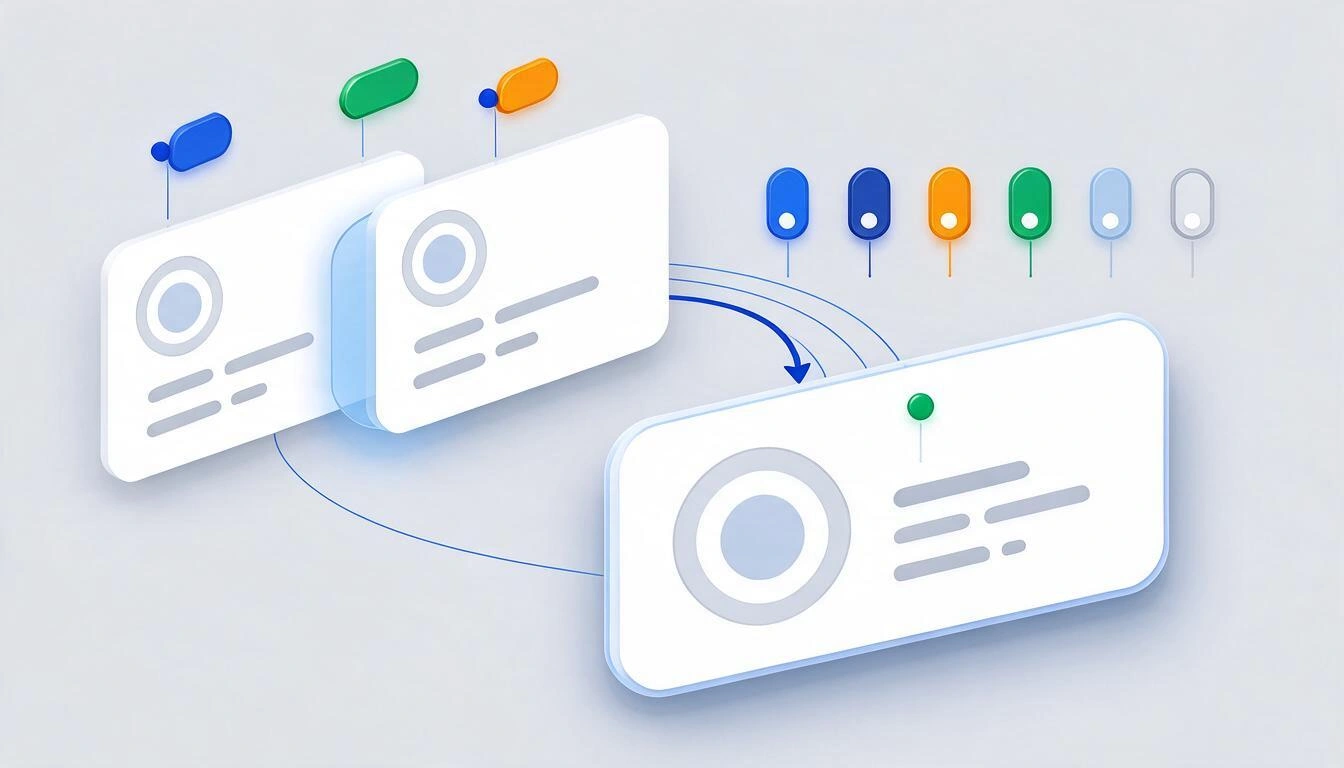
AiCrm detects them with three rules, in this order:
- Exact email (compared in lowercase). This is the strong rule: if it matches, there is definitely a duplicate.
- Exact phone number, only if the record does not have an email. It compares only the digits, ignoring spaces, dashes, dots, and parentheses, and removing the initial
+. - Similar name, with a similarity greater than or equal to 0.8. The formula is
1 − (Levenshtein distance ÷ length of the longest name), all in lowercase.
That third rule deserves two concrete examples, because it explains both what it catches and what it does not:
jose luis ramirezversusjosé luís ramírez: three substitutions (three accents) over 17 characters →1 − 3/17 = 0.82. Exceeds 0.8: detected.marta gomezversusmarta gomez ruiz: five characters need to be inserted over 16 →1 − 5/16 = 0.69. Does not reach 0.8: not detected.
Practical conclusion: automatic detection catches typos and accents, but does not catch the same person registered once with the first name and another with the first name and both last names. For those cases, the search by name, email, phone, or company is your tool.
Detection also runs while you are typing a new contact: half a second after typing the email or name, the form alerts if there is already someone similar, with a link to view the existing record and the option to create the contact as well.
What exactly happens when merging two records
Merging in AiCrm is field by field: you choose, for each piece of data, whether to keep the one from the primary record or the secondary one.
| Data | How it is resolved |
|---|---|
| Name, email, phone, company, country, state, notes | You choose, field by field |
| Tags | Union of both: none is lost |
| Registration date | The oldest of the two is kept |
| Last activity | The most recent is kept |
| Activity timeline | All from the secondary record are reassigned to the primary |
| Reminders | Same: reassigned to the primary record |
| Secondary record | It is deleted, and a merge entry with the name and email of the absorbed record is logged in the timeline |
That is to say: after merging you can still reconstruct what happened, because the merge itself is noted in the history.
How do I avoid going back to the spreadsheet in six months?
Almost everyone who migrates goes back to the spreadsheet for the same reason: new entries keep coming in manually. As long as the web form arrives by email and someone has to copy and paste, the parallel sheet reappears. The solution is not discipline; it is removing the manual step.
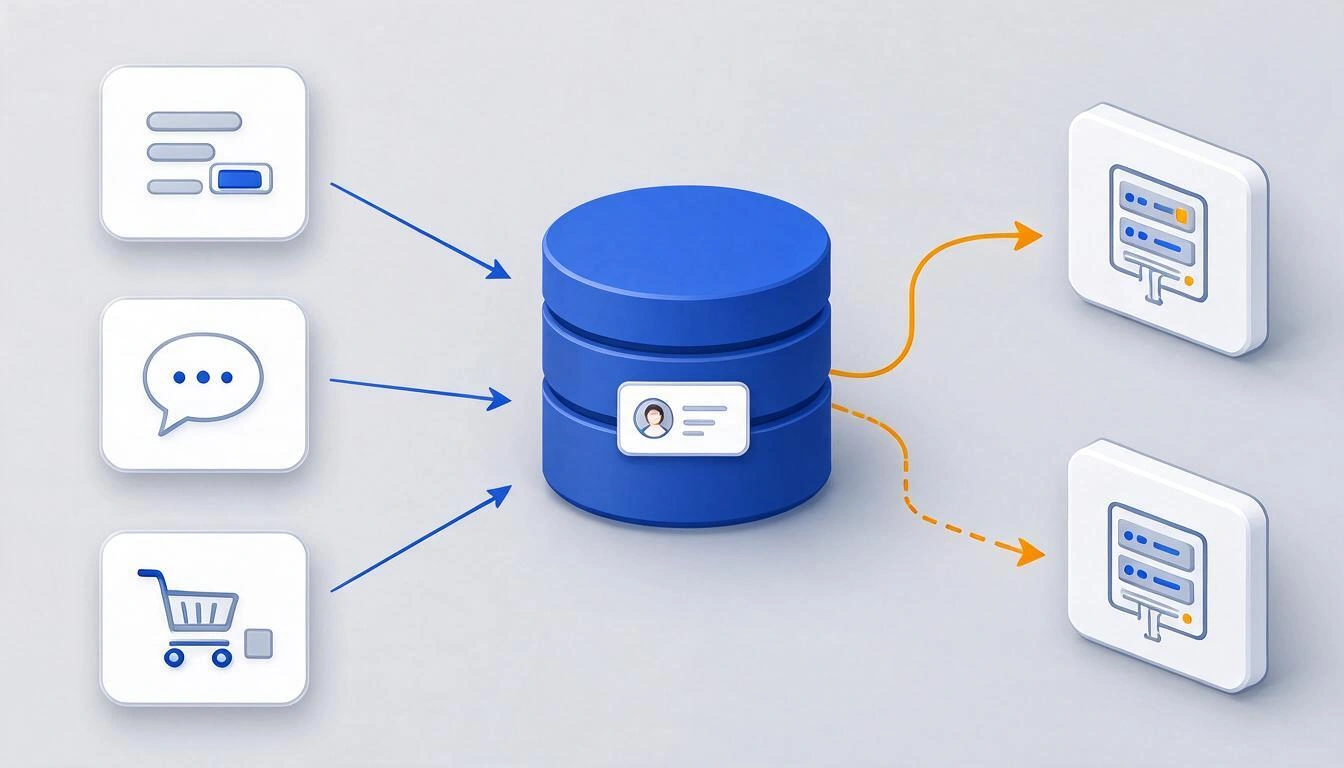
AiCrm provides a public REST API for that. You create a key from the app, send it in the X-Api-Key header, and your website registers the contact at the moment:
curl -X POST https://aistohire.com/api/apps/public/crm/customers \
  -H "X-Api-Key: YOUR_API_KEY" \
  -H "Content-Type: application/json" \
  -d '{"email":"[email protected]","name":"Laura Méndez","phone":"+34600112233","company":"Example SL","tags":["web","quote"],"subId":"contact-form"}'
What you need to know about that endpoint:
| Behavior | Detail |
|---|---|
| New entry | Responds 201 with action: "created" and the contact id |
| Email (or phone) already exists | Responds 200 with action: "existing": does not duplicate; fills in empty fields, adds new tags, and notes a new submission in the timeline |
| Minimum required | Email or phone. If you do not send a name, the part of the email before the @ is used |
| Automatic tag | api-lead, in addition to the ones you send |
| Source data | Saves the IP and the country of the request |
subId | Free text to know which form or campaign it came from; appears in the contact's timeline |
| Usage limit | 100 requests per minute and key; exceeding it returns 429 |
And conversely: when something changes in the CRM, the webhooks notify your systems. Available events: customer.created, customer.updated, customer.deleted, and activity.created. Each delivery carries the header X-AiCrm-Event with the event name and X-AiCrm-Signature with an HMAC-SHA256 of the body, calculated with the webhook secret, so you can verify that the call is ours and not from a third party.
Honesty about webhooks, because it matters for designing your integration: the delivery is best effort, with one immediate retry at 1.5 seconds and a timeout of 5 seconds. There is no persistent retry queue: if your server is down for two minutes, that event is lost. If you need delivery guarantees, use the webhook as a notification and the API GET /crm/customers as the source of truth for reconciliation.
The rest of the API, in case your integration needs more than just registration:
| Method | Path | Purpose |
|---|---|---|
POST | /api/apps/public/crm/customers | Create (or retrieve the existing one) |
GET | /api/apps/public/crm/customers | List with page, perPage, search, status, tags, country |
GET | /api/apps/public/crm/customers/:id | Record with its activity |
PUT | /api/apps/public/crm/customers/:id | Update |
DELETE | /api/apps/public/crm/customers/:id | Delete |
POST | /api/apps/public/crm/customers/:id/activities | Add an activity to the timeline |
What AiCrm does NOT do? The limits, in writing
An article on migration that does not tell you the limits of the tool is wasting your time twice: during migration and when migrating back. These are AiCrm's limits, as is.
| Limit | Value / behavior |
|---|---|
| Contacts traversed when filtering or exporting | 5,000 per creation. Above that number, this is not the tool |
| Rows per import | 10,000 per file |
| Contacts in the PDF list | 500 |
| Push notifications for reminders | None. Reminders are seen in "Today's Pending" and in the Reminders section, with overdue, complete, and postpone marks |
| Sending emails or messages to clients | No. AiCrm organizes and records; it does not write to anyone on your behalf |
| Mass deletion of contacts | None. It is deleted one by one |
| Import with the tab closed | No. It can be resumed from the history, but it does not advance on its own |
| Webhook retries | One immediate, in memory. No persistent queue |
Saved views and @ mentions in notes | Pending: there is no interface yet |
| Artificial intelligence | The app does not use any AI engine. Statistics, trends, duplicate detection, and reports are deterministic calculations on the server |
That last row is deliberate: there is no magic scoring of leads or generated summaries. Duplicate detection is a formula that you can calculate manually, and that is why we have shown it to you above.
What it does do, summarized: records with tags, statuses, and timelines; search by name, email, phone, or company; filters by status, tags, country, and dates; reminders with date and time; detection and merging of duplicates; CSV import and export; reports in PDF or CSV; API keys, webhooks, and a dashboard with totals by status, new entries from the last 30 days with their variation, countries and browsers of origin, and trend graphs for 7, 30, 90 days, and one year.
And what about data protection when moving a customer database?
Moving contacts from a spreadsheet to a CRM does not change your obligations, but it does change how easy it is to fulfill them. Regulation (EU) 2016/679 (GDPR) requires in its Article 5.1(d) that personal data be "accurate and, where necessary, kept up to date," and that inaccurate data be erased or rectified without delay: three different records of the same person with different phone numbers are, literally, inaccurate data.
A migration is also the natural moment for the cleanup you have been postponing: contacts that no longer have a basis for being there, do not migrate them.
What AiCrm brings to the table in that regard, without exaggeration: each contact is a unique and deletable record, the history notes when it was created and by what means, and you can export the data of one person or the entire database to CSV whenever you want, with the fields you choose —useful for responding to a request for access or portability (arts. 15 and 20 of the GDPR)—.
Where the limit is: AiCrm is a contact database, not a compliance tool. It does not manage consents, does not keep the activity log of processing under Article 30, nor does it evaluate your legitimizing basis. This article is informational and is not legal advice: for your specific case, consult a professional or your data protection officer.
Migration checklist, from start to finish
Print it or copy it. For a database of 1,000-2,000 contacts, the entire process can fit in a morning.
- Gather all sources: spreadsheets, old exports, your mobile's contact book, emails from the form.
- Paste everything into a single sheet with the same header and add a "source" column (this will serve as a label).
- Clean: remove decorative rows, unmerge combined cells, emails in lowercase, phones in a single format.
- Translate the status column to
lead/active/inactive/churned. - Merge the labels into a single column separated by commas.
- Data → Remove duplicates by email.
- Save as CSV UTF-8.
- Cut a test file with 20 rows and upload it.
- Review the proposed mapping, correct what is necessary and launch the test.
- Check in the CRM: accents, phones, statuses, and labels of those 20 records.
- Upload the complete file (maximum 10,000 rows per batch) and keep the tab open until the end.
- Download the CSV of errors, correct those rows in your Excel and re-upload only them, this time with "update existing ones" checked.
- Check for duplicates in records that seem repeated and merge them.
- Schedule reminders for the five contacts you need to call this week. If you don't do this, the CRM becomes a dead file.
- Connect your website form to the API so that future entries do not go through any spreadsheet.
Frequently Asked Questions
How many contacts can I import at once?
Up to 10,000 rows per file in AiCrm, processed in batches of 100. If your database is larger, split the CSV into several files and upload them one after the other. Keep in mind the other limit, which is the one that really matters: filters and exports go through a maximum of 5,000 contacts per creation, so if you're handling tens of thousands of records, you need a tool from another category.
Why does my CSV have broken accents?
Because it was saved in the local system encoding (ANSI / Windows-1252) instead of UTF-8. Go back to Excel and use Save As → "CSV UTF-8 (comma delimited)", available from Excel 2016. AiCrm retries the file in latin1 if it detects the character �, but this is a safety net, not a guarantee: export correctly from the start and save yourself the scare.
Will my contacts duplicate if I import the same file twice?
No, if you use the option correctly. With "update existing ones" checked, rows whose email is already in the CRM update the existing record instead of creating another: they fill in the fields that were empty and add new tags without deleting the old ones. If you don't check that option, those rows are rejected and appear in the error CSV as "Duplicate (email already exists)". Note: the protection is by email; a row without an email can still create a new record.
Can I undo an import if I made a mistake?
There is no undo button. Deleting the import from history removes the record of the work, not the contacts it created, and in AiCrm, deleting contacts is done one by one, without bulk deletion. What you do have is the automatic tag importacion-AAAA-MM-DD on all records from that batch, which allows you to filter and review them quickly. That's why it's advisable to always do a test with 20 rows before the full file.
What happens with the "Status" column in my Excel?
Only four values are recognized: lead, active, inactive, and churned. Anything else —"Client", "Active" with a capital letter, "OK", "Pending"— will be converted to lead without any warning. Translate that column in your sheet before exporting, or you'll end up with your entire database marked as lead.
Can I import from Google Sheets or from the export of another CRM?
Yes: any CSV works. In Google Sheets, File → Download → Comma-separated values (.csv), which already comes out in UTF-8 and comma-separated. If you're coming from another CRM, export to CSV and map its columns to the eight fields of AiCrm; columns without an equivalent can be left unmapped and simply will not be imported. What is not migrated in any case via CSV is the conversation history from the other system: the timeline starts from scratch, with the import registration as the first entry.
Do I need to know how to code to use AiCrm?
No. All management —creating records, tagging, searching, filtering, importing, exporting, merging duplicates, and scheduling reminders— is done from the app without touching a line of code. The API and webhooks are optional and are there for when you want your website, your form, or your chatbot to register contacts automatically.
What if I want to switch to another tool tomorrow?
You export. AiCrm generates a CSV with the fields you choose from thirteen available (id, name, email, phone, company, country, status, tags, registration date, last activity, notes, IP, and browser), over the entire database or only over what you have filtered at that moment. You can also generate summary reports, contact reports, or activity reports in PDF or CSV. Your data comes out in the same format it went in.
In a nutshell
AiCrm is the lightweight CRM from AIsToHire that gathers your contacts into records with tags, statuses, notes, reminders, and timeline, imports and exports them in CSV, detects and merges duplicates, and allows your website to register clients automatically through its REST API with webhooks; it is at AiCrm — Lightweight CRM with API to create customers from any system It does not use artificial intelligence, does not write to your clients for you, and is designed for databases of up to a few thousand contacts: if that describes your case, the migration you just read can fit into a morning.
Try AiCrm for free and import your CSV
Try AiCrm for free and import your CSVKeep reading
View all articles →
Switching CRM without paying a toll: what the Data Act guarantees you from January 12, 2027

Why Your Car Insurance Increased in 2026: Average Premium of €1,412 and Historic Record

Discussing via WhatsApp or talking in person: what science says about couple conflicts through messages