 AisToPDF
How to compress a PDF that is too large to email or upload to an electronic platform
Team at AisToPDFWritten with AI assistance14 min readIn summary
- A PDF usually weighs a lot for one reason: inside there is no text, there are photos. A document written on a computer takes up kilobytes; the same scanned document takes up megabytes.
- In our measured test on October 25, 2026, a scan of 9 pages from 9.36 MB dropped to 3.26 MB (−65 %) with recommended compression and to 0.98 MB (−90 %) with maximum compression. The same document, but in digital text, only dropped by 18 % (from 47 to 39 KB): there is nothing to compress there.
- The limits that block you are concrete: 25 MB in Gmail and Outlook.com, and 10 MB per document and 15 MB in total in the General Electronic Registry of the General State Administration.
- Compressing does not turn text into an image: after compressing a text PDF to the maximum, the 34,874 characters of the document were still selectable and searchable.
- Compressing twice at the same level does nothing: the second pass returned a file 28 bytes larger.
If you have reached here, it is because a form has told you "the file exceeds the maximum size" or the email got stuck while sending. This guide explains why this happens, how much can really be reduced (with measurements, not promises), and how to do it in three taps with AisToPDF, the PDF tool suite from AIsToHire: AisToPDF, online PDF tools. All the figures in this article are measured with the same compression engine used by the app (Ghostscript 10.08.0 with its exact parameters).
Why does my PDF weigh so much? Because it stores photos, not letters
A PDF can store two very different things under the same icon: real text (letters, fonts, and coordinates) or an image per page (what a scanner produces or a mobile photo). The first takes up a few kilobytes per page; the second, around 1 MB per page if in color at 300 dots per inch (dpi). That is the whole difference.
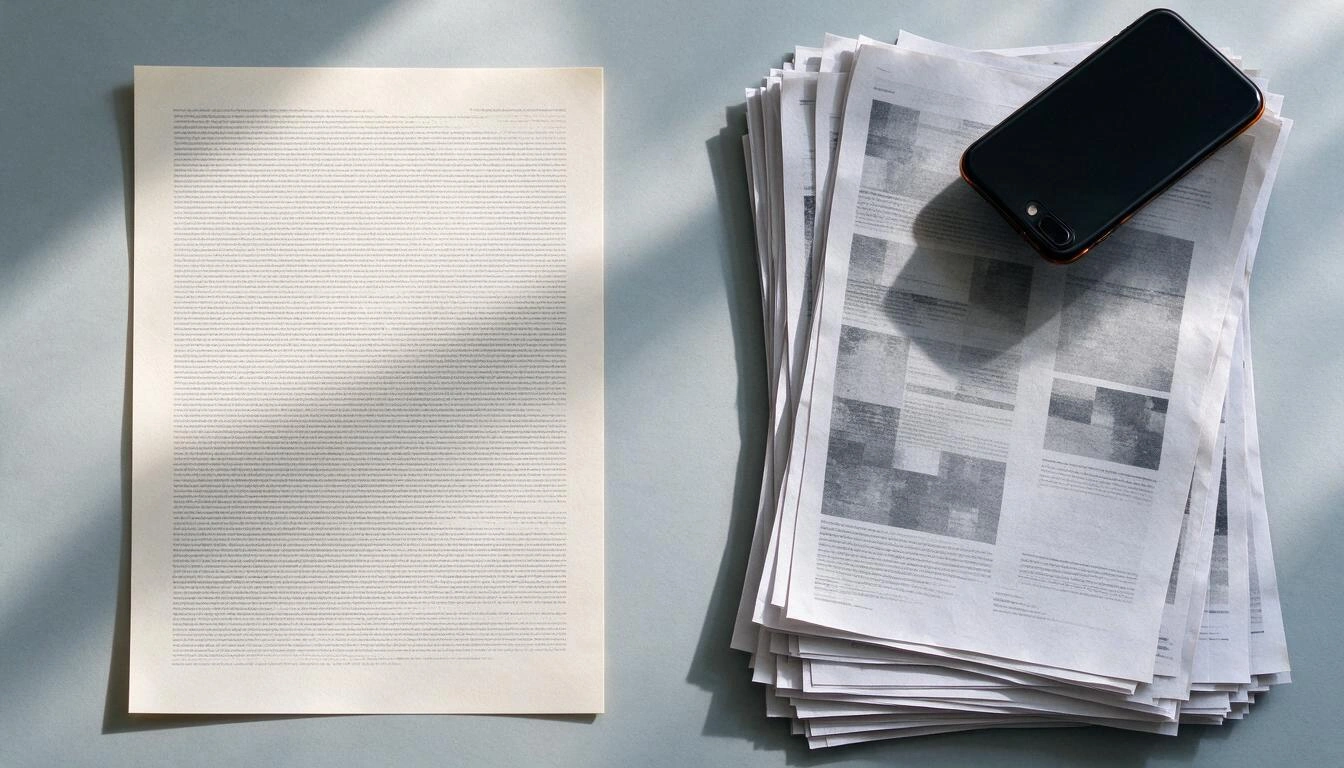
How to know which of the two cases you are in, without installing anything: open the PDF and try to select a word with the mouse. If you can select it and search for it with Ctrl+F, it is a text PDF and compressing it will hardly reduce the weight. If the cursor behaves as if you are hovering over a photo, it is a scan: there the compression does its job.
| PDF Type | What it stores inside | Typical weight per page | Does compression help? |
|---|---|---|---|
| Exported from Word, Google Docs, or a software-generated invoice | Text and fonts | 5–50 KB | Little: −10 % to −20 % |
| Scanned or photographed in color at 300 dpi | An image per page | ~1 MB (measured: 9.36 MB / 9 pages) | A lot: −65 % to −90 % |
| Presentation or catalog with embedded photos | Text + large images | 0.5–3 MB | A lot, on the images |
| Images converted to PDF | The JPEG as is | What the photo weighed | A lot |
That last case has a trick and it is good to know: when you convert photos to PDF, the PDF weighs practically what the photos weighed. We checked this with the AisToPDF tool: a JPEG of 1.10 MB produced a PDF of 1.10 MB. If you upload twelve mobile photos of 3 MB, you will have a PDF of about 36 MB; the problem is not the PDF, it is the photos.
How much should it weigh? The real limits that are blocking you
Before compressing, it is good to know what number you need to reach, because the limit is set by the destination, not the file. These are the three that block the most daily, with their official source and the date we checked them (October 25, 2026).
| Destination | Limit | What counts | Source |
|---|---|---|---|
| Gmail (personal account) | 25 MB | Total attachments of the message | Gmail Help |
| Outlook.com | 25 MB | Text + inserted and attached files. OneDrive links do not count (up to 2 GB) | Microsoft Support |
| General Electronic Registry (AGE, Spain) | 10 MB per document, 15 MB in total, maximum 5 documents | Each file attached to the registry | General Access Point Headquarters |
Two important warnings. The first: each electronic headquarters, university, or job portal sets its own limits and formats, and many are stricter than the ones above (it is common to find caps of 4, 5, or 10 MB per file). Always check the notice of the form itself before uploading. The second: if a procedure requires the document to be signed electronically, compressing after signing invalidates the signature, because compression rewrites the file. Compress first and sign later.
How much can you really reduce? This is what we measured
To avoid repeating the typical "reduce your PDF by up to 99 %", we conducted the test. We started with a 9-page document in two versions: one generated as digital text (47.3 KB) and another converted to scan by rasterizing each page at 300 dpi in color (9.36 MB, or 1.04 MB per page). We ran the compression engine on both with the same parameters used by AisToPDF (Ghostscript 10.08.0, forced image resampling, and JPEG re-encoding), on October 25, 2026.
| Document | Original | Less compression (300 dpi) | Recommended compression (150 dpi) | Maximum compression (72 dpi) |
|---|---|---|---|---|
| 9-page scan | 9.36 MB | 9.37 MB → no reduction | 3.26 MB (−65 %) | 0.98 MB (−90 %) |
| Same document in digital text | 47.3 KB | 41.7 KB (−12 %) | 38.8 KB (−18 %) | 38.9 KB (−18 %) |
Three conclusions worth more than the percentage:
- In a 300 dpi scan, the "less compression" level does nothing: its target is precisely 300 dpi, so there’s nothing to resample and the file actually came out 6 KB larger. AisToPDF detects this case and returns the original instead of a worse file.
- In a text PDF don’t expect miracles: an 18 % reduction on 47 KB is 8 KB. If your text PDF weighs 30 MB, it’s not the text that weighs; it’s embedded images or repeated fonts.
- Compressing twice is a waste of time. We passed the already compressed scan through a second round at the same level: the result was 28 bytes larger. What is lost in quality in the first pass is not recovered, and the weight no longer decreases.
What compression level should I choose?
Image compression works by lowering the resolution: the fewer dots per inch, the fewer pixels to save. This is what really happened within the pages of our scan at each level, measured with pdfimages:
| Level in AisToPDF | Target resolution | Actual image size of each page | Weight per page | Purpose |
|---|---|---|---|---|
| Less compression | 300 dpi | 2550 × 3300 px (no changes) | ~1,100 KB | Documents you will print on paper or that contain blueprints and small text |
| Recommended | 150 dpi | 1355 × 1753 px | ~390 KB | The default balance: reads perfectly on screen and prints acceptably |
| Maximum | 72 dpi | 637 × 825 px | ~118 KB | Sending by email or uploading to a form with a tight limit; for reading on screen, not for printing |
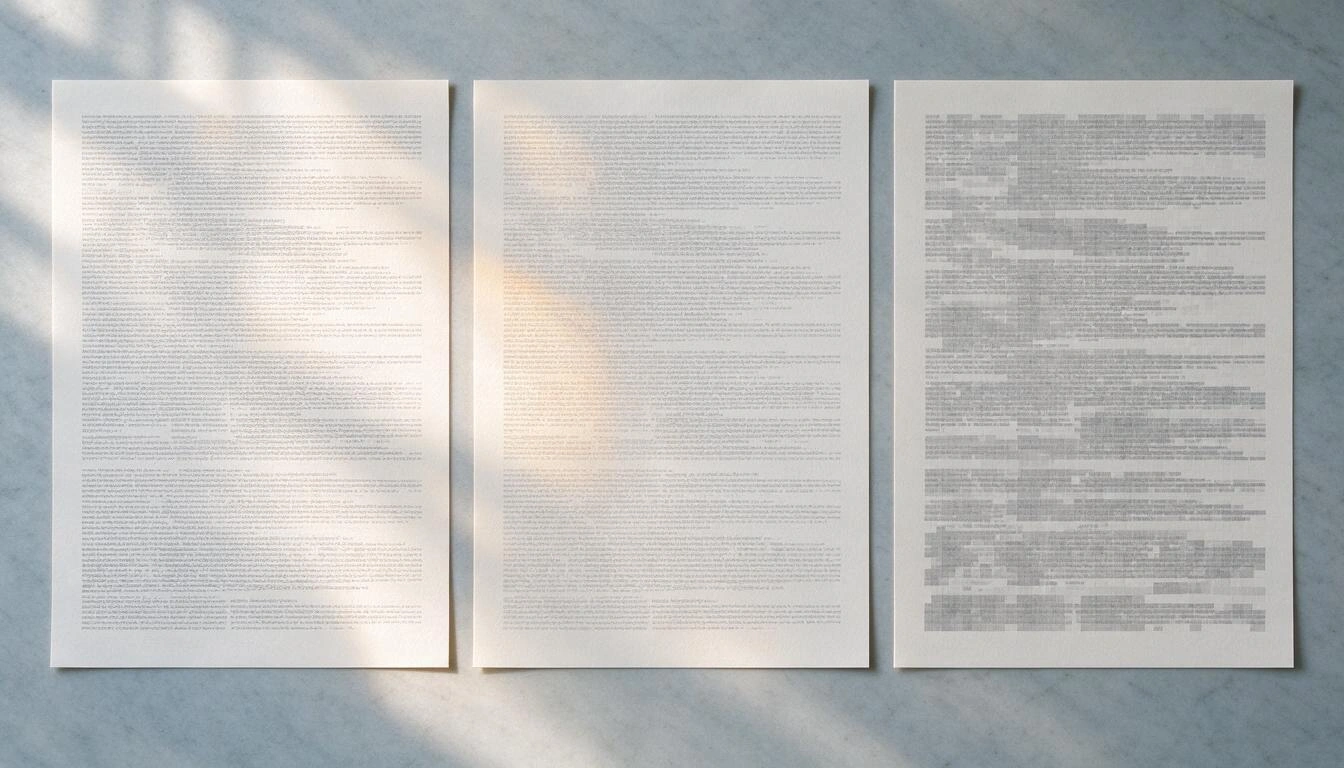
Translated: at 72 dpi an A4 page is reduced to 637 × 825 pixels, approximately what that same page occupies on a laptop screen. It is readable, but when zooming in or printing, pixelation becomes noticeable, and small text (footnotes, stamps, account numbers) can become unclear. Rule of thumb: start with the recommended and only drop to maximum if you don’t meet the limit required.
How to compress a PDF step by step in AisToPDF
AisToPDF is a web tool: you install nothing and it works the same on mobile and computer. The complete process consists of five steps and finishes in seconds.
- Open AisToPDF and choose the Compress PDF tool (it’s among the popular ones on the home screen, in the Optimize category).
- Add the file from your device or choose one you already have in My files, the app's cloud manager. The upload limit is 20 MB per file.
- Choose level: Less compression, Recommended, or Maximum. If in doubt, leave it at recommended.
- Click process. When finished, you will see the actual statistics of the result: original size, final size, percentage of reduction, and number of pages. If the compression did not improve anything, the app returns the original instead of a worse file.
- Download the PDF or click Save to cloud to keep it in My files. Important: results live for 24 hours in a temporary folder and then are deleted; by saving them in the cloud, an independent copy is created that no longer expires. The history keeps your last 50 jobs.
And check the result before sending it: open it and look at the page with the smallest text. It’s the only quality control that matters.
If compression isn't enough: four levers that do work
When the file still doesn't fit, the problem isn't the compression, it's the content. Here are the four real levers, in order of effectiveness.
- Remove unnecessary pages. In a scan, each extra page is approximately one megabyte. Removing 10 blank or duplicate pages from a scan reduces about 10 MB before compressing anything. In AisToPDF, the tool is Remove pages, indicating ranges like
1-3,7. - Split the document and send it in parts. This is exactly what the General Electronic Registry recommends when you exceed its limit: make several registrations. With Split PDF you can separate by ranges or take one page per file (and it delivers it in a ZIP if multiple files are created).
- Watch the source if you generate it yourself. If you're going to scan, scan in black and white or grayscale and at 200–300 dpi: it weighs much less than color at 600 dpi. If you're going to photograph documents with your phone, remember that when converting them to PDF the PDF inherits the weight of the photos.
- Send a link instead of an attachment. In Outlook.com, files linked from OneDrive do not count towards the 25 MB message limit. It's the solution when the document must maintain quality no matter what.
Five mistakes that keep the PDF heavy
- Compressing twice in a row. Measured: 0% additional. If it didn't drop enough, change the level or remove pages, don't repeat the operation.
- Compressing a PDF of only text expecting megabytes. There are no images to resample; the weight is elsewhere.
- Renaming or changing the extension. It does not alter the content by a byte.
- Compressing after electronically signing. The signature becomes invalid because the file is rewritten. First compress, then sign.
- Compressing a password-protected PDF. If the document is encrypted, the tool cannot open it to recompress it. Do it before protecting: in AisToPDF, password protection (AES-256 encryption) is the last step in the flow, not the first.
What AisToPDF does and what it doesn't do
So you don't get surprises, this is exactly what the app offers today, with no fine print. AisToPDF has 12 tools: merge, split, remove pages, compress, repair, images to PDF, Word to PDF, PDF to Word, PDF to JPG, rotate, number pages, and password protect. It also includes its own cloud file manager, job history, and an AI chat about your documents.
| Does | Does not |
|---|---|
| Compress with three levels and return real reduction statistics | OCR: does not convert a scan into searchable text nor generates a PDF with a text layer |
| Merge 2 to 20 PDFs, split by ranges or page by page, remove pages, rotate and number | Edit existing text or images within a PDF |
| Convert images to PDF (JPG, PNG, WEBP, HEIC; up to 50, with page size and margins, correcting the orientation of mobile photos) | Electronically sign or validate signatures |
| Convert Word to PDF and PDF to Word, and PDF to JPG at 72, 150 or 300 dpi | Fill or create PDF forms |
| Password protect (AES-256 encryption) and repair damaged PDFs | Remove the password from an encrypted PDF |
| Save your files in the app's cloud, with a history of the last 50 jobs | Process files larger than 20 MB |
| Ask a PDF with AI (documents up to 10 MB saved in My files) and maintain the conversation | Provide legal, tax or administrative advice, nor guarantee that a specific procedure will accept your file |
Regarding the AI chat, an honest clarification: it reads the document with a multimodal model so you can ask it questions and summarize it, but it does not produce a PDF with searchable text nor replaces an OCR. And regarding procedures: AisToPDF transforms files; checking the requirements of each office —format, size, signature— is still your responsibility.
Frequently Asked Questions
How much can I reduce a PDF without it looking bad?
In a scanned document, up to 65% with the recommended level (150 dpi) maintaining perfect readability on screen and acceptable printing. Reaching 90% is possible by lowering to 72 dpi, but at that point the page is 637 × 825 pixels and small text becomes questionable when printed. In a PDF that only has text, the actual reduction is around 18%.
My PDF is 30 MB and the electronic headquarters only accepts 10 MB, what should I do?
First, remove the pages that are not requested (in a scan, each page is almost a megabyte), then compress with the recommended level and, if it still doesn’t fit, lower to maximum. If it still doesn’t fit, split the document and submit multiple records: this is what the General Electronic Registry of the AGE indicates, whose limit is 10 MB per document and 15 MB in total. Always confirm the specific limit in the notice of the form you are using.
Does compressing a PDF reduce the quality of the text?
Not the text itself. Compression lowers the resolution of images, it does not convert letters into pixels: in our test, after compressing a text PDF to the maximum, the 34,874 characters remained selectable and searchable. A different case is a scan, where the "text" is part of an image and does lose sharpness.
Why does my PDF not reduce at all when I compress it?
For two reasons most of the time. Either it is a text PDF, where there are no images to resample and the margin is 10-20%. Or it is already compressed: a second pass at the same level does not reduce a byte (in our measurement it returned a file 28 bytes larger). AisToPDF, in that case, gives you the original file instead of a worse one.
Do I need to install anything or register to compress a PDF?
AisToPDF works in the browser, on mobile and on computer, without installing any program. You need an AIsToHire account because the files and the history are stored in your cloud space within the app.
What happens to my files after processing them?
The result stays for 24 hours in a temporary folder and then is automatically deleted along with its entry from the history. If you want to keep it, press Save to the cloud: an independent copy is created in your files that does not expire. You can delete any file yourself from the manager.
Can I compress several PDFs at once?
Compression works on one file at a time. If you need to deliver a single lighter document from several, the effective order is: merge the PDFs first (from 2 to 20 files) and then compress the result.
Can I compress a scanned PDF and also search for text within it?
You can compress; searching for text within a scan, no: that requires OCR and AisToPDF does not include it. What you can do is save the PDF in My files and use the AI chat (for documents up to 10 MB) to ask about its content and request a summary.
AisToPDF is the PDF tool suite of AIsToHire: compress, merge, split, convert, rotate, number, and protect PDFs from the browser, with your files stored in the app's cloud and an AI chat to ask about your documents. It is at AisToPDF – All-in-One PDF Tools. If you currently have a file stuck in a form, start with Compress PDF at the recommended level and check the actual reduction the app shows you.
Compress your PDF now at AisToPDF: upload the file, choose the recommended level, and check the actual reduction before downloading it.
Compress your PDF now at AisToPDF: upload the file, choose the recommended level, and check the actual reduction before downloading it.Keep reading
View all articles →
The PDF invoice is no longer valid: 2027-2028 calendar and what to do with all the ones you already have
Why Your Car Insurance Increased in 2026: Average Premium of €1,412 and Historic Record

Discussing via WhatsApp or talking in person: what science says about couple conflicts through messages