 AiNotes
Search for data in your PDFs and notes: why Ctrl+F fails you and what really works
Team at AiNotesWritten with AI assistance13 min readIn summary
- Ctrl+F doesn't fail by whim: if the PDF is a scan, there is no text inside, there is a picture. The search engine finds nothing because there is literally nothing to search for.
- Searching by string and searching by meaning are different things: Ctrl+F finds the exact word; a semantic search finds the paragraph that answers your question even if it uses different words.
- A document is only searchable if it has been converted to text first: transcription, broken into fragments, and vectorized. That is the work that a tool of this kind saves you.
- AiNotes does exactly that: you save the note with its PDFs and images, the app transcribes the visible text, indexes it, and then you answer questions in plain language, with the original notes in view.
- And what it doesn't do is also written here: it is not a literal search engine, it doesn't guess what you haven't saved, and it doesn't remember the previous question.
Losing track of your own data is more expensive than it seems. The report The Social Economy from the McKinsey Global Institute (July 2012) estimated that knowledge workers spend 19% of their work week searching for and gathering information — almost one day out of every five spent finding things that already exist. And the most frustrating part of that 19% is usually the same: you know you read it, you know you saved it, and you don't know which of your two hundred files it's in.
This article explains why traditional search engines fall short with your own documents, what alternatives exist, and how it works internally. The tool we illustrate with is AiNotes, the AI note-taking app from AIsToHire, because it is a concrete case from which we can provide real parameters instead of generalities. You can see it on the AiNotes page at AIsToHire.
Why Ctrl+F finds nothing in a scanned PDF
Because that PDF does not contain text: it contains an image of text. A PDF (ISO 32000 format) is a container that can hold either characters or photographs of pages, and when you pass a paper through a scanner or take a photo of it with your phone, what is saved is the latter. You see letters; the computer sees pixels. Ctrl+F searches among the characters that the file declares, and there are none.
That is why the same action works in one file and not in another without the difference being visible at first glance. These are the four common cases:
| What you have | What's inside | Does Ctrl+F find it? |
|---|---|---|
| PDF exported from Word, Google Docs, or a website | Real characters | Yes |
| Scanned or photographed PDF | Images of pages | No |
| Scanned PDF that has undergone OCR | Images plus an invisible layer of text on top | Yes, with any errors made by the OCR |
| Screenshot, photo of a whiteboard, slide in JPG | Only pixels | No |
Quick trick to know which one you're in: try selecting a paragraph with the mouse. If it highlights word by word, there is text. If it highlights a blue rectangle over the entire area, it is an image.
Searching for the exact word is not the same as searching for the answer
A classic search engine compares strings of characters; a semantic search compares meanings. It is the difference between finding the word you wrote and finding the paragraph that answers what you wanted to know, which is almost never written with your exact words.
A concrete example. You saved a supplier's contract and months later you want to know how far in advance you need to notify not to renew it. You type preaviso in the search engine: zero results. The contract said "either party may communicate its intention not to renew with a minimum notice of 60 calendar days". The word "preaviso" does not appear anywhere in the document. Ctrl+F has done its job perfectly and has still let you down.
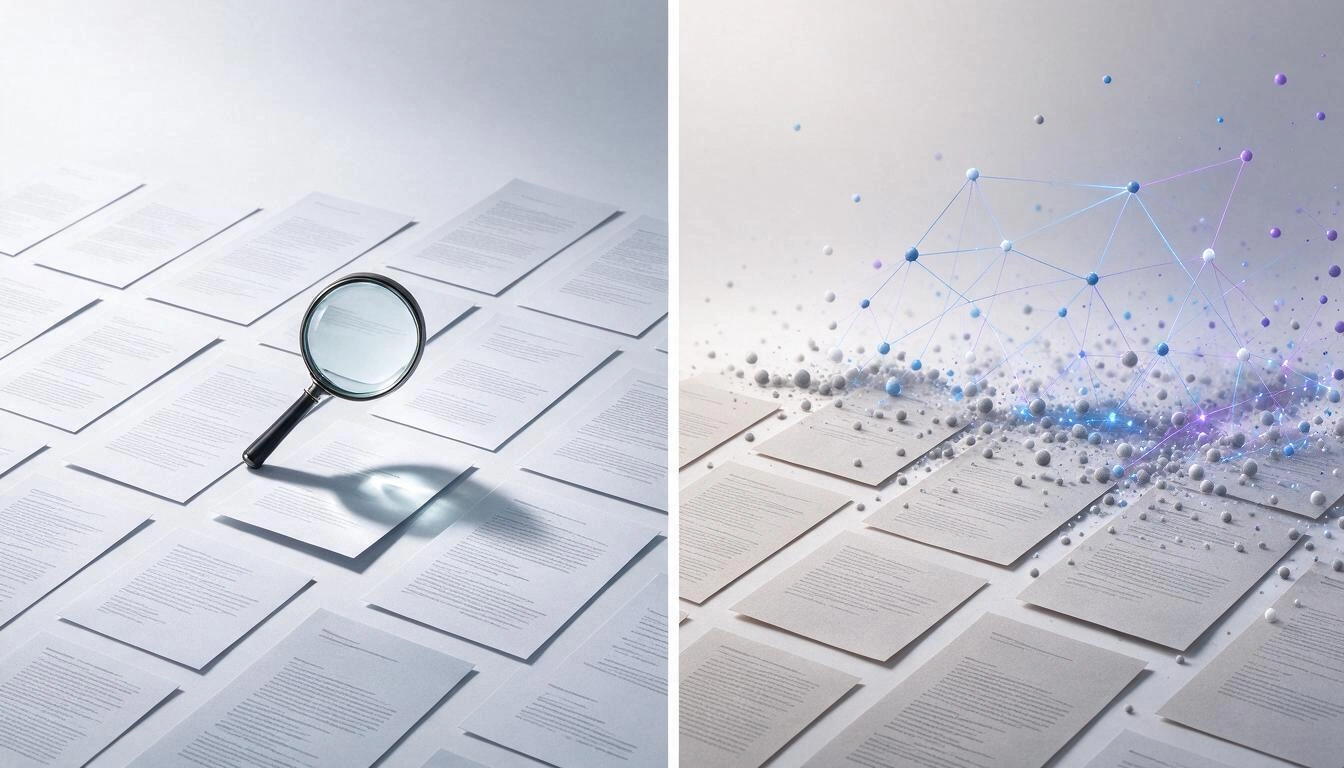
These are the four methods available today, with their real limits:
| Method | What it finds | Where it breaks | What it requires |
|---|---|---|---|
| Ctrl+F in the viewer | The exact string, in the file you have open | Scans, synonyms, plurals; one file at a time | Knowing in advance which file to look in |
| Operating system search | File names and text that the index has been able to read | Text that lives inside an image; synonyms | That the index is up to date |
| OCR and then search | The exact string, also in scans | Still doesn't understand synonyms or questions | Passing each file through an OCR tool |
| Meaning-based search | The passage that answers, even if it doesn't repeat your words | The exact literal match; what you haven't saved | Indexing once, when saving |
None completely replaces the previous one. If what you are looking for is an exact reference that you already know —an invoice number, a code— the literal search is still the right tool. If what you have is a question, the literal search falls short.
How an meaning search works internally
In four steps: the document is transcribed to text, that text is cut into fragments, each fragment is converted into a list of numbers that represents its meaning, and when you ask, the fragments whose numbers are most similar to those of your question are retrieved. The answer is drafted using only those fragments.
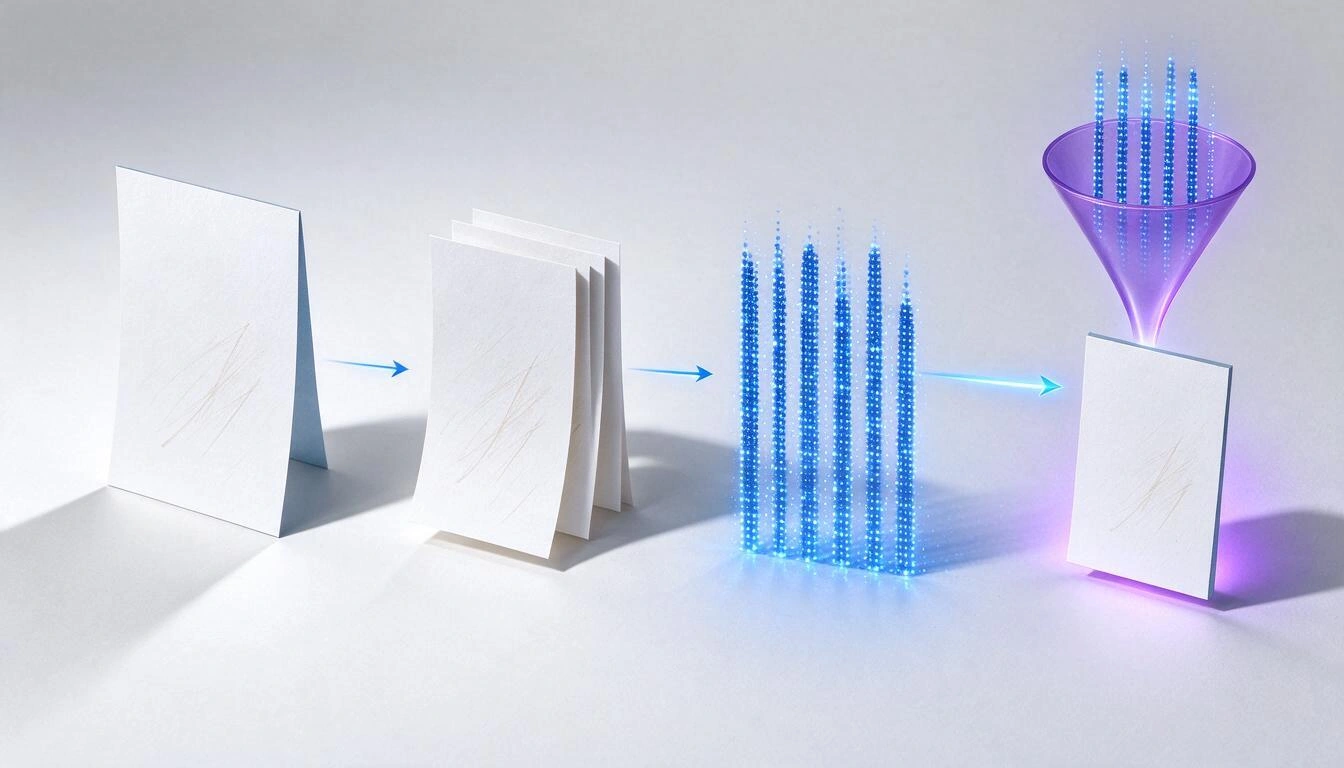
That sounds abstract, so here are the parameters with which AiNotes really works, as they are in its code as of October 25, 2026:
| Step | What happens | Real parameter in AiNotes |
|---|---|---|
| 1. Transcription | A vision model reads the PDF or image and returns all visible text | Gemini 2.5 Flash, temperature 0.1 (the low value seeks fidelity, not creativity) |
| 2. Chunking | The text is cut into overlapping fragments, so that an idea that starts at word 398 and ends at 405 is still whole in one | 400 words per fragment, 50 words of overlap |
| 3. Vectorization | Each fragment is converted into a list of numbers that encodes its meaning | gemini-embedding-001, 768 dimensions |
| 4. Retrieval | Your question is vectorized the same way and the vectors are compared for cosine similarity | The 5 most similar fragments, with a minimum relevance of 0.30 |
| 5. Drafting | A model writes the answer using only those fragments | Gemini 2.5 Flash, temperature 0.3, with explicit instruction to say when the data is not available |
Step 2 is the most confusing and the most important. If you cut a document into dry pieces, an idea that starts at word 398 and ends at 405 gets split and no fragment contains it whole. That's why each fragment repeats the last 50 words of the previous one: the overlap is cheap and prevents losing just the phrase you were looking for.
Step 4 explains why a semantic search sometimes does not give you the literal match you expected. The comparison is by meaning, not by characters, and the threshold of 0.30 discards what does not resemble enough. Going back to the contract example: the question "How much notice do I need to give to not renew?" and the paragraph about "60 calendar days" share almost no words, but they do share meaning, and that is what cosine measures.
What AiNotes does and what it does not do
AiNotes stores text notes with attached PDFs and images, transcribes and indexes them automatically, and then answers your questions using only that content, showing from which notes each answer came. It is not a document manager, nor a formatted editor, nor an assistant that searches the internet.
What it does:
- Text note with attachments in the same card: PDF, PNG, JPG, WebP, and GIF, up to 25 MB per note.
- Transcription of the visible text of the attachment, including scans and photos of documents.
- Automatic indexing upon saving, without you having to press anything else.
- Status per item: each attachment and the text of the note itself have their indicator of processing, ready, or error. The list refreshes itself every 5 seconds while there is something in progress.
- If an item fails, it shows the reason and a button to retry only that item, without redoing the note.
- Natural language chat that responds with your content and shows the titles of the notes it has used.
- When editing a note, only what changed is reindexed: the text if you touched it, the new attachments you added, and what you removed is taken out of the index.
- When deleting a note, its index is also deleted.
- Each query searches only in your own notebook, limited to your account and your user.
What it does not do, and it's good to know beforehand:
- It is not a literal search engine. It does not have a Ctrl+F over your notes: the search is by meaning.
- It has no conversation memory. Each question is answered separately; you cannot say "And in the other contract?" expecting it to remember which one was the first.
- It does not accept Word, Excel, or audio. The accepted formats are the five from the list above.
- It is not a formatted editor. It is written in plain text: there are no bolds, tables, folders, tags, or favorites.
- It does not summarize a document on request. What you see next to each indexed element is a preview of the first lines of the transcribed text, not a drafted summary.
- It does not invent. If the information is not in your notes, it states so instead of filling the gap. And if text cannot be extracted from a file —a photo without letters, an illegible scan— that element is marked as an error with the reason, not in green: this way you do not ask about something that was never indexed.
That last point is more important than it seems. A tool that marks a document as "ready" from which it has extracted nothing makes you waste time twice: when you ask and when you believe the answer.
Seven rules for the search to really work
The quality of the answers depends almost entirely on the quality of what you've saved. These seven rules make the biggest difference, and none takes more than a minute.
- One note, one subject. A contract, a meeting, an article. Mixing five topics in one note makes the retrieved fragments bring noise from the other four.
- Write two lines of your own context. Who, when, what it’s about. The attachment rarely says "this is the maintenance contract for 2026 with supplier X", and those two lines are what later allows you to ask about the supplier by name.
- Take care of the first sentence. AiNotes uses the first sentence of the note as the title (up to 80 characters) and that title is exactly what you will see quoted as a source in the answer. "Maintenance contract supplier X 2026" is recognized at a glance; "Notes" is not.
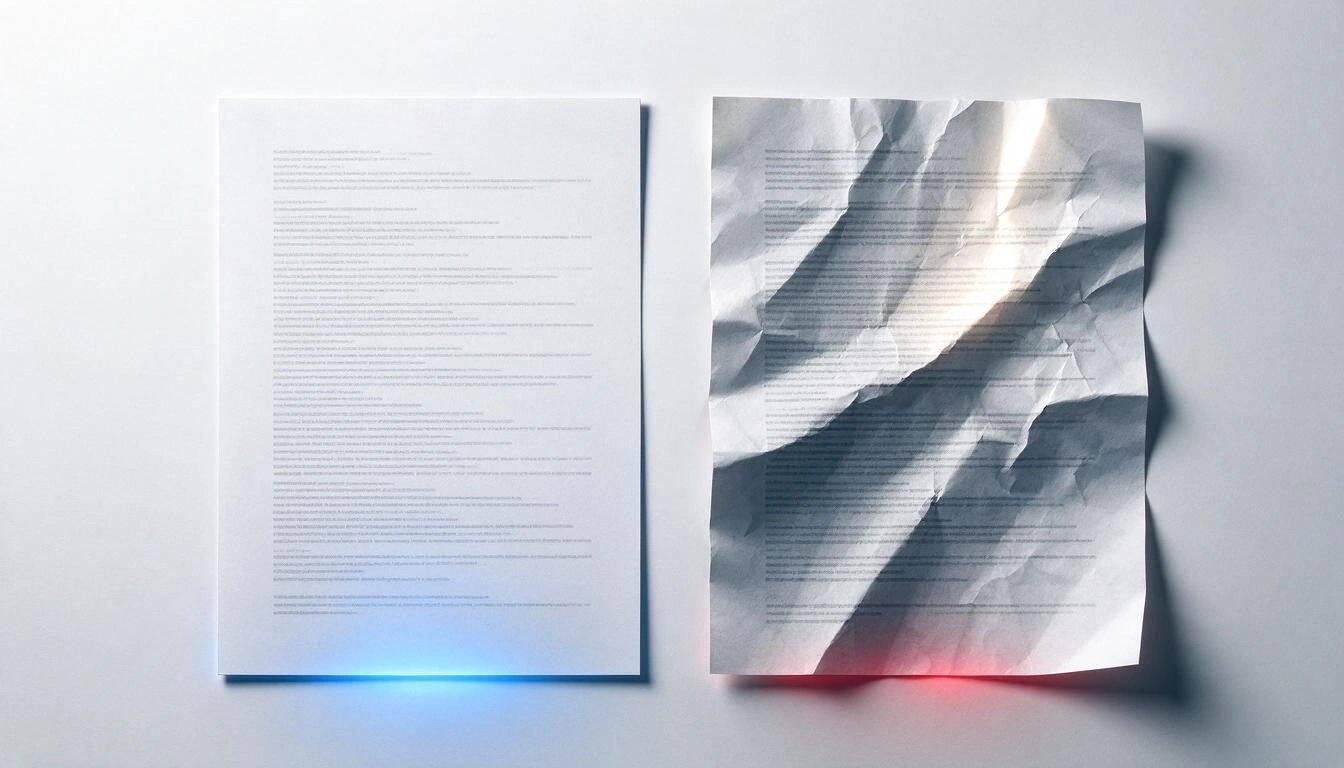
- Scan straight, flat, and with uniform light. The model transcribes what it sees: a twisted, crumpled page or one with a glare loses entire lines and no one warns you which ones.
- No tiny captures. If the text is not comfortably readable when you zoom in on the image on your screen, it won’t transcribe well either.
- Distribute large documents. The limit is 25 MB per note. A 300-page manual split into chapters, besides fitting, returns much more precise fragments.
- Check the status before asking. If the indicator is processing, that content does not yet exist for the search engine. If it’s in error, read the reason and click retry.
Three example questions and what each returns
To see where the boundary is, here are three types of questions and the result you can expect from a semantic search on your own notes:
| Question | What happens | Why |
|---|---|---|
| "How much notice do I have to give to not renew the contract?" | Returns the passage about the 60 days and cites the contract note | The question and the paragraph share meaning even if they don’t share words |
| "What did I say in the Tuesday meeting about the budget?" | Works if you saved the minutes and wrote in the note that it was from Tuesday | The system only knows what is written: a date you didn’t note does not exist |
| "How many times does the word guarantee appear in my documents?" | That’s not its thing | That is a literal count, not a question of meaning |
The practical rule is simple: ask with complete sentences, as you would ask a colleague who has read your documents. Searches for a single loose word are precisely where a semantic tool performs worst.
Frequently asked questions
Why doesn't Ctrl+F find a word I'm seeing in the PDF?
Because what you’re seeing is an image, not text. Scanned or photographed PDFs store pages as photographs, and the search engine only looks at the characters the file declares. Check it by trying to select a paragraph with the mouse: if a rectangle is marked instead of loose words, it’s an image.
Do I have to run my PDFs through an OCR before uploading them?
No. AiNotes transcribes the visible text from the PDF or image when indexing it, so you don’t need a prior step. However, if the scan is twisted, blurry, or has glare, the transcription will lose lines: image quality still rules.
Can I search through multiple PDFs at once?
Yes. Questions are answered based on all the indexed content of your notebook, not on a specific file, and the answer indicates the titles of the notes from which it came. That’s precisely what Ctrl+F in the viewer doesn’t allow you to do, as it only looks at the open document.
What happens if I upload a blurry scan from which no text can be extracted?
That item is marked as an error with the reason, not as ready. From the note detail, you can click retry on that specific item, or replace the file with a better one, without having to create the note again.
Can the assistant invent an answer?
It is instructed to respond only with the fragments retrieved from your notes and to say when the data is not available. It also shows the notes it has used, so you can always open them and check. As with any AI system, verify in the source what is important: that’s what the citations are for.
How much can I attach to a note?
Up to 25 MB per note, in PDF, PNG, JPG, WebP, or GIF. If a document exceeds this, split it: besides fitting, broken down by chapters it returns more precise results.
Can I attach a Word or Excel file?
Not from the app. The accepted formats are PDF, PNG, JPG, WebP, and GIF. If you have a DOCX, export it to PDF before attaching it.
Does the chat remember what I asked before?
No. Each question is answered independently, without history. Write complete and self-contained questions instead of chaining phrases like "and the other?".
Who can see my notes?
Queries only search within the content of your own notebook, filtered by your account and user. AiNotes does not have a note sharing or teamwork feature.
What happens if I edit or delete a note?
When you edit it, only what changed is re-indexed: the text if you modified it and the new attachments; what you removed is taken out of the index. When you delete a note, all its indexed content is also deleted, so it stops appearing in the answers.
AiNotes, in one sentence
AiNotes is the AI notebook from AIsToHire: you save notes with PDFs and images, the app automatically transcribes and indexes the content, and then you answer your questions in natural language, seeing which notes each answer comes from. It is available at AiNotes — AI notes that answer your questions.
Stop opening files one by one to find a piece of information you've already saved. Create your notebook in AiNotes, upload your PDFs and notes, wait for them to be indexed, and ask them in your own words: the answer comes with the notes from which it originated.
Stop opening files one by one to find a piece of information you've already saved. Create your notebook in AiNotes, upload your PDFs and notes, wait for them to be indexed, and ask them in your own words: the answer comes with the notes from which it originated.Keep reading
View all articles →
Is it legal for an AI bot to record and transcribe your meetings? What has changed in 2026
Why Your Car Insurance Increased in 2026: Average Premium of €1,412 and Historic Record

Discussing via WhatsApp or talking in person: what science says about couple conflicts through messages