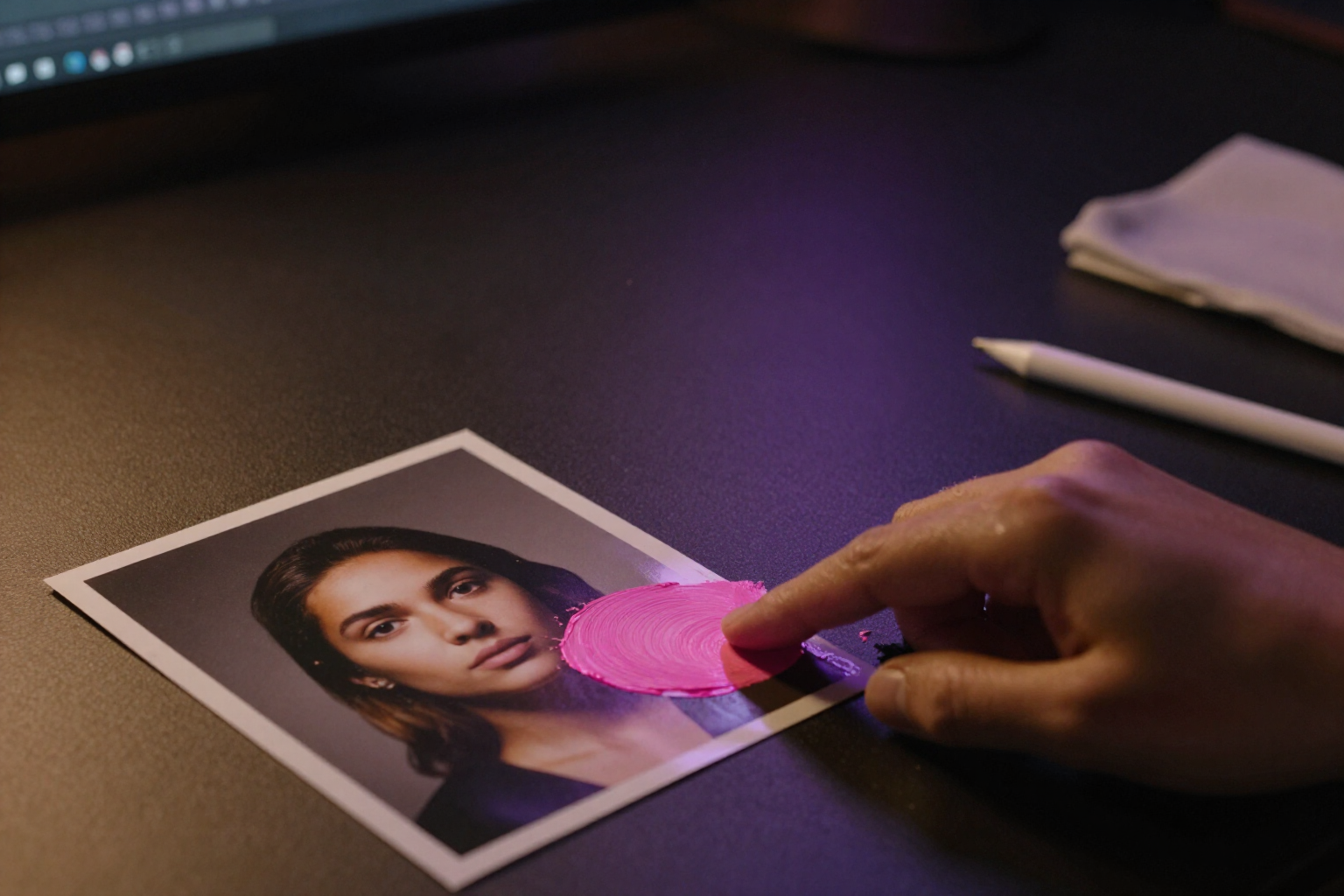
Paint the area with your finger and the AI erases or changes it
The magic eraser of aiPortrait: mark the object that doesn't belong on the portrait and it disappears, or describe what you want to appear in its place. The rest of the photo remains as it was.
When a portrait fails on a single detail, there's no need to regenerate the entire thing: just point out the part that is wrong.
In the aiPortrait editor, the Erase and Generate Area tools open a touch canvas over your portrait. You paint with your finger —or with the mouse— the area you want to intervene and see it marked in semi-transparent magenta: a brush with adjustable thickness from 10 to 90 pixels, an eraser to correct the mask itself, undo stroke by stroke, and a button to clear it and start over.
With the marked area, you choose what to do with it. In Erase, what you've painted is removed and the gap is reconstructed with its surroundings: same texture, same light, same perspective; if you want, you can write what the object was (up to 200 characters) to help the engine, but it's optional. In Generate Area, you describe the change in your own words —up to 300 characters, for example, "add some golden earrings"— and only that region is regenerated.
Internally, the app resolves a real limitation of current image engines: none accept a native mask channel. aiPortrait composes a second image, identical to yours but with the area tinted magenta, and sends it to the engine along with the original photo and the text instruction, making it clear that the magenta is just a marker to locate the region, which should not appear in the result and that everything outside that region should remain the same.
The editing is queued and you are notified when it finishes, and the result is saved as a new image linked to the original: your starting portrait is not lost, so you can try another mask or another instruction and keep the version you prefer.
The magic eraser and area editing are part of aiPortrait, the photo-realistic portrait app with AI from the AIsToHire platform, and can be used from the browser without installing anything: https://aistohire.com/aiportrait-photorealistic-portraits-ai-60/f/remove-objects-from-a-photo-and-edit-areas-with-ai
Benefits of Magic eraser and area editing
Precision at your fingertips
instead of explaining with words where the problem is, you point it out. The brush from 10 to 90 pixels works equally for a mole or half a shirt.
Magic eraser for objects
the microphone, the hand that shows up, the background object, or the unwanted reflection disappear and the gap is filled with the surrounding environment.
Add, not just remove
with Generate Zone you request what you want there —some earrings, some glasses, another collar— and the AI paints it only within the mask.
The rest of the portrait is untouched
the instruction to the engine is explicit, outside the marked area the photo must remain the same, so you don't lose the face or the light you already liked.
Correctable mask before spending anything
switch to the mask eraser, undo the last stroke or clear everything; the area is not submitted until you press the button.
Without destroying the original
each edit creates a new image linked to the original photo, so you can compare, repeat with another mask, or go back.
On any image from your gallery
portraits from the complete assistant, Quick Shot, or a reusable character, all fit into the same editor.

Try the magic eraser on your next portrait
Sign up for free on aiPortrait, generate a portrait, and use your finger to paint what you want to remove or change.