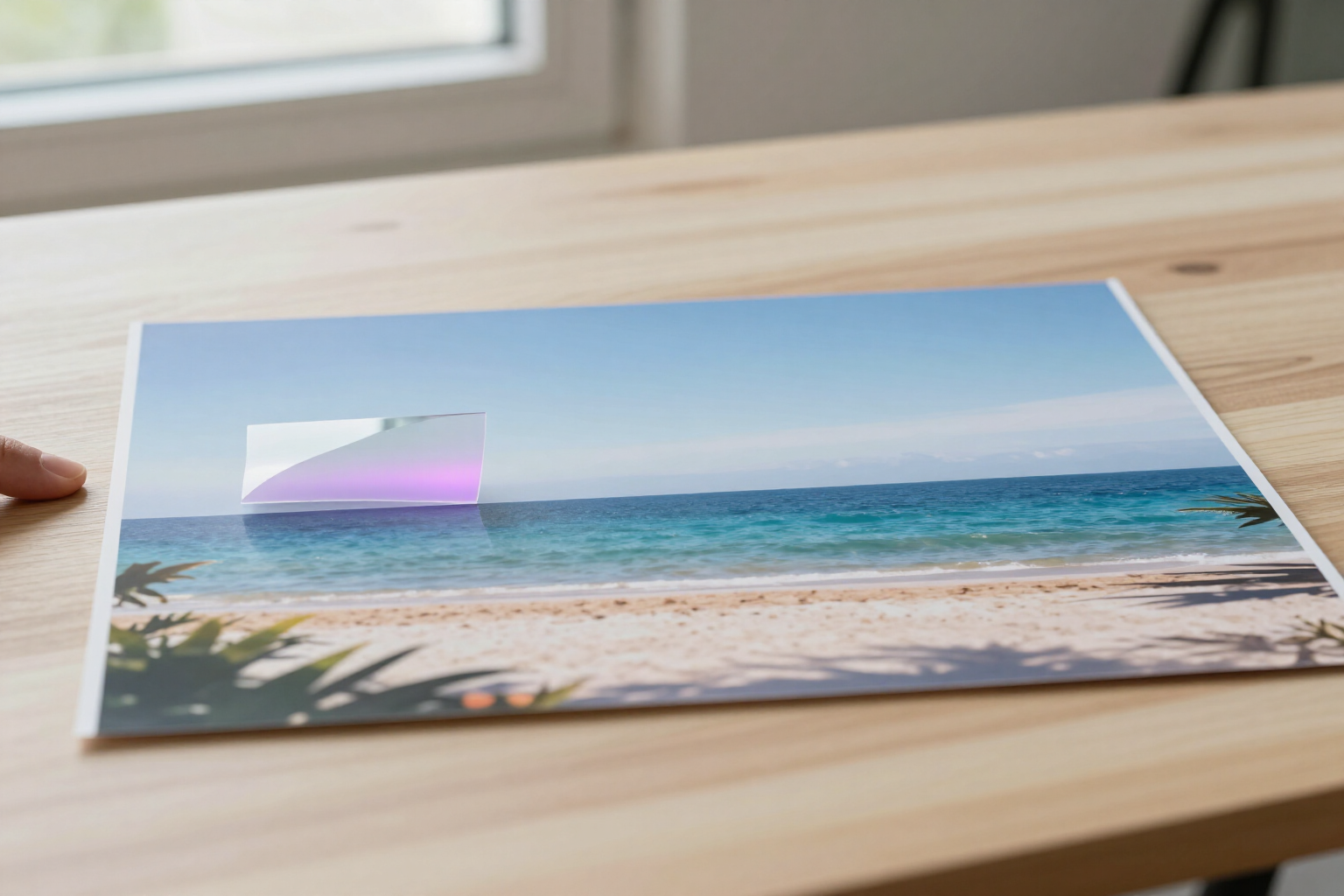
Edit only a photo area with AI, leaving the rest untouched
Paint with your finger what you want to change. Outside that mark, your photo remains the original pixel for pixel.
The problem with AI editing isn't changing what you ask for: it's what it changes without you asking.
In short: you open your photo in aiPicFlow, paint with your finger the area you want to change, write what should appear there, and apply. What remains outside the mark is not regenerated: the original pixel is preserved.
Most AI editors return an entirely new image, so the background, lighting, faces of other people in the photo, and even details you liked come out differently. aiPicFlow solves this in two steps: it sends a copy of your photo with the marked area in a magenta veil to the AI engine, so it knows exactly where to intervene, and then recomposes the result on the server using your real mask: it pastes the generated part only within the mark, over your original image, with a feathered edge so the join is invisible.
This guarantee isn't limited to a single tool: it’s shared by the four editor operations that work on a specific area. Retouch Area (you paint and describe what you want there), Erase Object (you remove something and the gap is filled), Replace Object (you change one thing for another), and Enhance Faces (only faces are refined, with the explicit instruction not to alter identity, features, age, or expression). Each tool adjusts the feathering of the edge independently, depending on how delicate the join is.
Marking the area is the simplest part of the process: one finger paints, two fingers zoom and move the photo to reach details, the brush is adjusted with a slider, and you can undo the last stroke or start over. And if you don't feel like painting, for erasing and replacing, you can simply tap the object or describe it with words («the person on the right») and aiPicFlow will locate it and build the mask for you.
Benefits of Masked editing without losing the background
The rest of the photo is untouched
outside the marked area, the final image is identical to the original, pixel for pixel, because that part never goes through the AI.
Seamless integration
the edge of the edited area automatically feathers, with more or less softening depending on the tool, to avoid the typical hard cut.
Easy finger marking
one finger paints, while two fingers zoom and pan the photo; brush size is adjusted with a slider, and you can undo the last stroke or clear the entire mark.
No need to always paint
for deleting and replacing, you can tap the object in the photo or describe it with words, and the app detects its outline and creates the mask for you.
The same guarantee across four tools
retouch an area, delete an object, replace it with another, and enhance faces, all while respecting the rest of the image.
Faces without beauty retouching
when enhancing faces, the instruction to the AI engine is to maintain identity, features, age, skin texture, and expression; sharpness and light are adjusted, your face is not altered.
It warns you before spending
if you haven't marked anything, it tells you, and if the mark covers almost the entire photo, it suggests using «Transform photo», which is the appropriate tool for that.
You can always go back
every editor operation can be undone and the original image is preserved, so you can experiment without fear of losing it.
Change only what you want in your photo
aiPicFlow is AIsToHire’s AI image creation and editing app. Register for free, upload a photo, paint an area, and see that the rest remains intact: https://aistohire.com/aipicflow-create-images-with-ai-and-edit-photos-53